Getting started
About ten minutes. At the end, Reelwire has posted your first video on Instagram, Facebook or LinkedIn by itself, in your own brand.
How a video is made
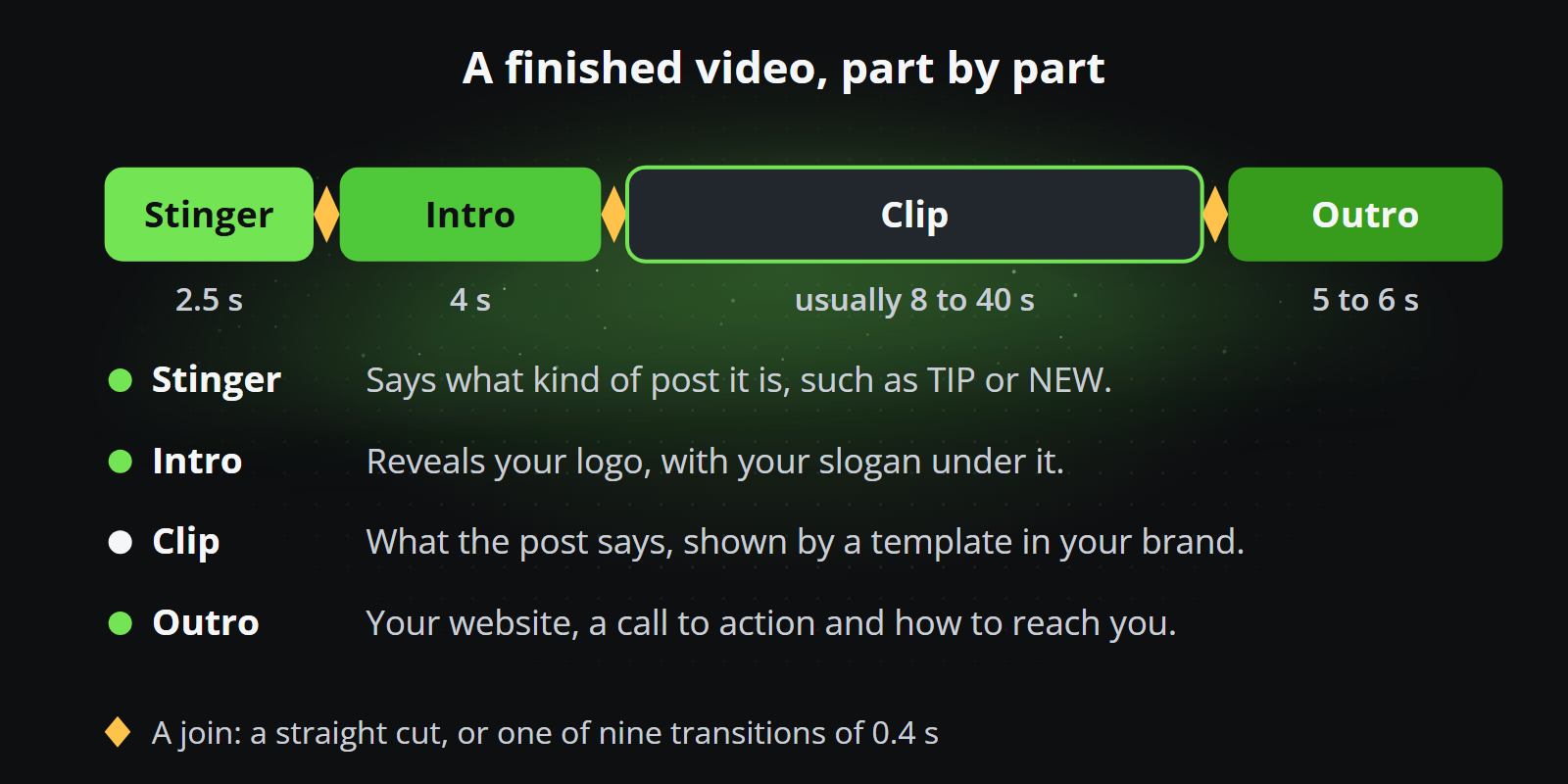
A video is up to four parts in a row:
- Stinger: a second or two saying what kind of post it is, such as TIP or NEW.
- Intro: your logo appears.
- Clip: what the post says, drawn by a template.
- Outro: the end card, with your website and what to do next.
Only the clip is always there. The other three are made once, kept on your brand, and wrap every clip.
Brand, channel, post
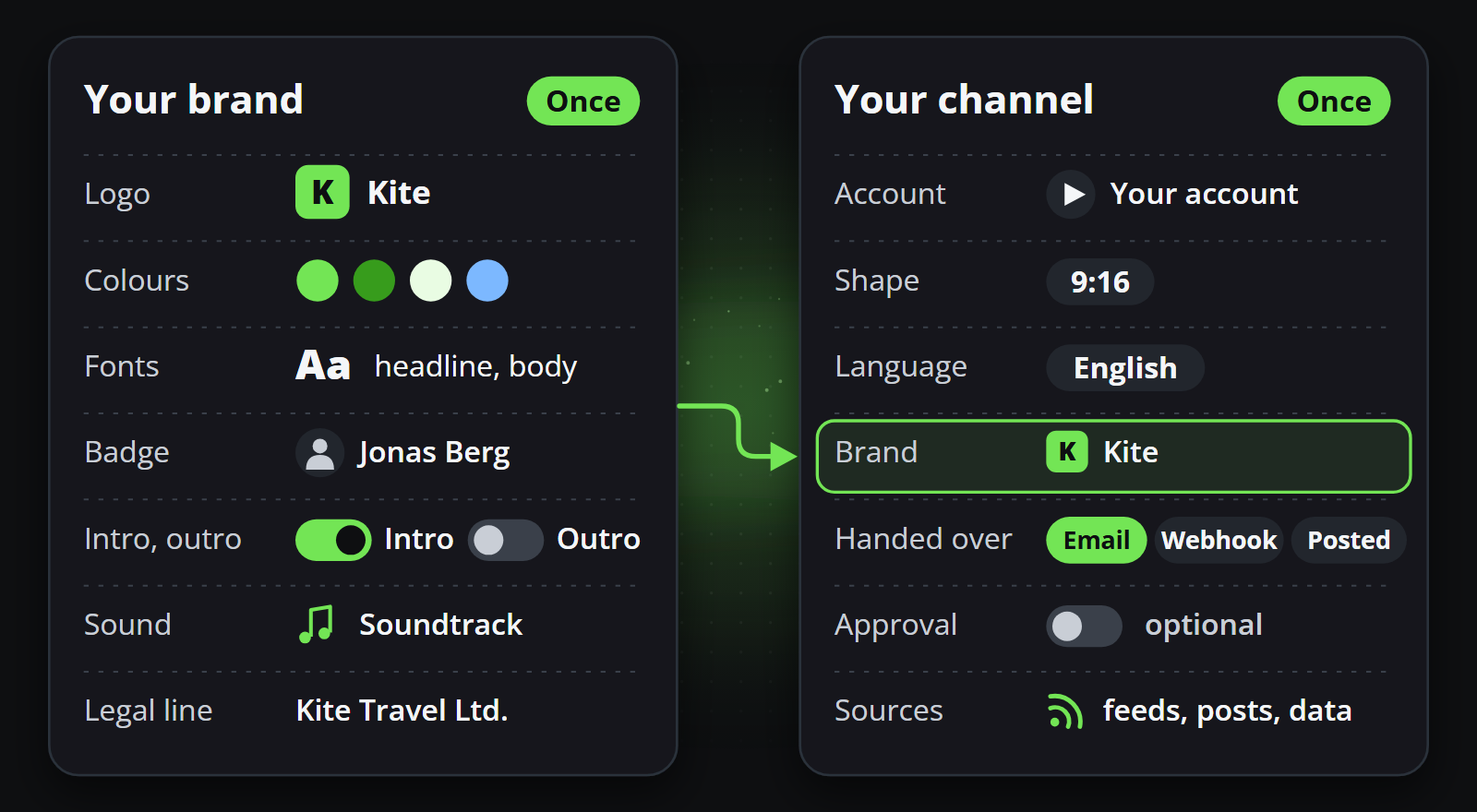
- A brand is how your videos look: logo, colours, fonts, stinger, intro, outro and music.
- A channel is where they go: one account on one platform, in one shape. It wears one brand.
- A post is what a video says. You write it in a post list, and every channel listening to that list makes a video of it.
Your workspace already has Default brand and Default channel. Leave them as they are: you make your own beside them.
Reelwire posts on Instagram, Facebook or LinkedIn itself from the Individual plan on, which includes one connected account (see Plan). On Free, leave out step 4 of your channel: the channel emails you every video instead, ready to post.
1. Your brand
- Open Brands and press Add new brand.
- Type a Brand name, add your Logo and set your Colours.
- Switch on Outro video, choose 9x16 under Add a file for another shape or Universal, and press Create one with Reelwire on its row. Pick a style, type your website, press Render 1 video, then Use this.
- Press Create.
A stinger and an intro are made the same way, under Stinger and Intro video. Both are optional.
2. Your channel
- Open Channels and press Add new channel.
- Choose your new brand and type an Internal channel name.
- Set Platform to Instagram, Facebook or LinkedIn, and Aspect ratio to 9x16.
- Under Handed over by platform connector, press Connect Instagram account (it names your platform), sign in in the tab that opens, and come back. The dialogue shows Connected: and your account.
- Press Create.
3. Your first post
- Open Post composer, press Add new manual post list, name it and press Create.
- On Channels, press Sources on your new channel, then Add new source. Choose Manual post lists as the Content source and your new list as the Post list, and press Add source.
- On Post composer, press Post now on your list. Choose a Template, put your own words in place of the example, and press Post now.
A minute or two later it is on the platform. Posts shows how far it is, and reads Published, with a link to the post, once it is there.
What next
- Write more posts in the same list, each with its own date and time.
- Or let your AI assistant do all of this in one conversation: Install it connects ChatGPT, Claude, Gemini, Grok, Perplexity or Mistral in a few minutes.
- Each platform in detail: Instagram, Facebook and LinkedIn.