Post a video by hand
A channel with Email switched on is drawn exactly like any other: same template, same brand, same language, same approval. Reelwire never posts anything itself, so the last step is yours: when a post is due, Reelwire emails it to you, you put it on the platform yourself, and then you say it is up.
When to use it
- You are just starting. Every new workspace comes with Default channel, handed over by email, on No specific platform in 9x16, wearing Default brand. You can make and post a real video before you set anything else up.
- Nobody on your side runs a script or a posting service. The email is the whole hand-over: somebody with a phone can post from it in a couple of minutes.
- A person wants to make the last step. Adding music in the app, choosing a cover, tagging people: things that are easier to do by hand on the platform than to describe in advance.
What the channel needs
Nothing to connect. There is nothing to set up for it on the Webhook screen, which is for channels handed over by webhook.
One aspect ratio. It renders any shape Reelwire draws, 9x16, 4x5, 1x1 or 16x9, and you choose one per channel. See choosing the shape below.
A source, like every channel. A channel publishes only what it listens to. If nothing has arrived yet, open Channels, press Sources on its row and add a feed, a post list or a custom API stream.
The letter
When a post is due, at its posting time and after a person has cleared it where the channel asks for that, Reelwire sends a letter to the workspace owner and to everybody holding the Operations permission (Team). Its subject is "Ready to post:" and the names of the channels in it.
One letter carries one hand-over. A post going to several channels with Email switched on comes as one letter, naming every channel, once every one of them is rendered and due. A channel that asks for approval comes in a letter of its own, once somebody approves it. A channel of the post that is not in a letter is named in it, with the reason: waiting for approval, still rendering, or its channel paused, and whether it follows on its own.
The letter itself is short: which post is ready, for which channels, and one button, Open the post kit. The videos, their text and everything to do with them are in the post kit, not in the letter.
The link works for 14 days, and the letter says so. After that the post kit says the link has expired, and the post is still on Posts when you sign in, for as long as its clip is kept. A reminder, or a letter sent again, carries a new link with 14 days of its own.
On Posts the post then reads HANDED OVER, because Reelwire cannot know whether or where the video goes up. Once you have posted it, say so, with the link to the post if you have it: Mark as published in the post kit, or under More on its row on Posts. It then reads PUBLISHED, and the link is there for anybody who needs it later. If it will not be posted after all, press Skip this post, so nobody waits for it.
A day after the letter, if a channel in it is still handed over and nobody has said anything about it, the same people get one short reminder, "Still to post:", with the same post kit.
Lost the letter, or need it for a colleague? Resend post request under More sends it again, headed "Sent again". To change the text or the video, Send update request under More sends a new letter, headed "Changed", with the post as it now reads: if it is up already, change it there as well. Send delete request sends one headed "Take down", asking for the post to be taken down where it was posted; once it is, mark it as deleted.
Everybody who can operate the workspace gets the same letter. Agree who posts, or the video goes up twice. The post kit shows what has been said about each channel, so the second person to open it can see that the first has already marked it.
The post kit
Open the post kit in the letter opens a page made for a phone, with nothing to sign in to: the link in the letter is the key. Its first card says what to do, until when the link works, and, under New to this?, has a button for each guide: this one, Let your AI assistant post it and Post through a posting service. It always shows the post as it reads now, so after a change, the kit from the first letter shows the new text too. Each channel of the letter has a card of its own, with:
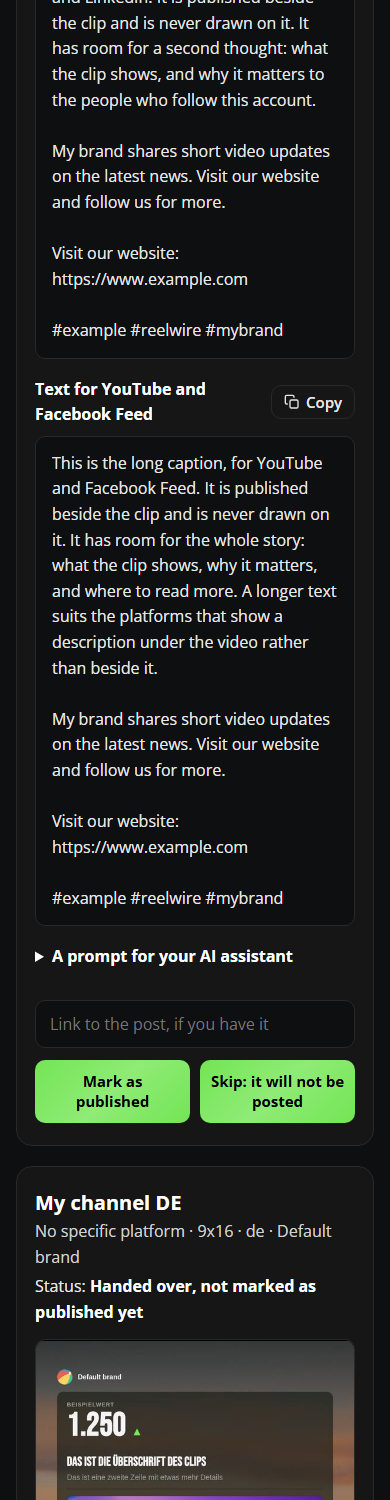
- Above the video, one under the other: Share, Download video to save the video, Download cover, and Download text, every text of the post in one JSON file.
- Share, on a phone that can hand a file to another app. One press opens the phone's share sheet, so the video goes straight into Instagram, TikTok or wherever it is going.
- Download cover, the still from the video, for an app that asks for a cover.
- The text, with a Copy button: the title where the platform has one, then the text as it goes out, the caption with the brand's description, the link and the hashtags after it. A channel on No specific platform gets its text in three lengths instead, one for each kind of platform: Telegram; Instagram, TikTok, Facebook Reels and LinkedIn; YouTube and Facebook Feed. Copy the one for where you post it.
- The video, to play on the page.
- Under Tell Reelwire what happened: Skip this post, then Mark as published. Each asks once before it acts; Mark as published asks there for the link to the post, which you may leave empty.
The kit from a "Take down" letter has Mark as deleted instead, for once the post is gone, and it asks once too.
Under the kit's first card, A prompt for your AI assistant opens one ready instruction for every channel still to post, with the link to each video and its text, to give an assistant that can use a browser. See Let your AI assistant post it.
Anybody holding the link can open the kit and mark the post, so forward the letter only to somebody who may.
Choosing the shape
The shape is rendered, not cropped afterwards, so it is chosen on the channel before a post is drawn.
| Where it is going | Aspect ratio |
|---|---|
| Instagram Reels, TikTok, YouTube Shorts, Facebook Reels | 9x16 |
| Instagram, Facebook and LinkedIn feeds | 1x1 or 4x5 |
| An ordinary YouTube video, a landscape LinkedIn video | 16x9 |
To change it, open Channels, press Settings on the channel's row, pick No specific platform with the ratio you want under Format, and press Save. It changes what the channel renders from now on; clips already made keep the shape they were drawn in.
To post the same content in two shapes, for example a Reel and a square feed post, make two channels. They are one post, and where neither asks for approval, they arrive in one letter.
Getting the video and the text
On a phone
The quickest way is Share, in the post kit. Open the post kit from the letter, press Share and pick the app. (Where the video was not ready in time, the button reads Share now: press it once more.) The video lands in the app's new post. Then press Copy beside the text in the post kit, and paste it into the app.
iPhone, without Share. Tap Download video. Safari asks whether to download it; say yes and it goes to the Files app, under Downloads. Open it there, tap the Share button and choose Save Video. That puts it in Photos, which is where Instagram, TikTok, YouTube, Facebook and LinkedIn look for it. If the video opens and plays instead of downloading, use Share and Save Video straight away.
Android, without Share. Tap Download video. It goes to your Downloads folder and normally appears in your gallery at once. If an app does not show it, open the app's own file picker and look in Downloads.
The text. Press Copy beside it in the post kit, then switch to the platform's app.
On a computer
Click Download video in the post kit; the .mp4 lands in your Downloads folder. Copy the text
with its Copy button in the post kit. Then open the platform's website.
Instagram Reels
On a phone
- Open Instagram, tap + and choose Reel.
- Pick the video. It is usually the newest item in the gallery. Tap Next.
- The editing screen is where music and effects go. Leave it as it is unless you want them, and tap Next.
- Paste the text into the caption.
- Tap Share.
On a computer
- Open instagram.com, press Create in the menu on the left, then Post.
- Drag the video in, or press Select from computer.
- At the crop step, press the crop button and choose Original. Otherwise Instagram crops it square.
- Press Next twice, paste the text into the caption and press Share. A video posted this way goes out as a Reel.
For a feed post in 1x1 or 4x5, the steps are the same with Post in place of Reel on a phone.
TikTok
On a phone
- Open TikTok and tap +.
- Tap Upload, beside the record button, choose the video and tap Next.
- Tap Next again past the editing screen.
- Paste the text into the description.
- Tap Post.
On a computer
- Open tiktok.com and press Upload. It opens TikTok Studio.
- Press Select video and choose the file.
- Paste the text into the description.
- Press Post.
YouTube Shorts
On a phone
- Open YouTube, tap + and choose Short.
- Tap the gallery square in the bottom corner and choose the video. Tap Next or Done until you reach the details.
- Write a title of up to 100 characters. The first line of the caption usually works. Where the app offers a description, paste the text there.
- Tap Upload Short.
On a computer
- Open YouTube Studio (studio.youtube.com), press Create, then Upload videos.
- Choose the file. A vertical or square video of up to three minutes becomes a Short by itself.
- Write a title and paste the text into the description.
- Answer whether it is made for children. YouTube will not go on without the answer.
- Press Next until you reach Visibility, choose Public and press Publish.
A 16x9 video goes through exactly the same steps on a computer and becomes an ordinary YouTube video.
Facebook Reels
On a phone
- To post as your Page rather than as yourself, switch to the Page first: open the menu, tap your name and choose the Page.
- Tap Reel, at the top of the feed or under +.
- Choose the video and tap Next.
- Paste the text into the description.
- Tap Share.
On a computer
- Open facebook.com and switch to your Page.
- In the box for a new post, choose Reel.
- Add the video and press Next.
- Paste the text into the description.
- Press Publish.
Meta Business Suite does the same under Create reel, and can post it to a connected Instagram account at the same time. For a square feed post, start a normal post and choose Photo/video.
LinkedIn
On a phone
- Open LinkedIn and tap Post.
- At the top of the new post, choose who it goes out as. A company page you manage is listed there beside your own name.
- Tap the media button and choose the video.
- Paste the text.
- Tap Post.
On a computer
- Open linkedin.com and press Start a post. For a company page, start it from the page's admin view instead.
- Press the media button, choose the file and press Next.
- Paste the text.
- Press Post.
LinkedIn shows 1x1 well in the feed, and 16x9 for a landscape video.
Pasting the text
The post kit gives you one block: caption, then the brand's disclaimer, then the link, then the hashtags. Paste it whole. Where an app asks for a part in a field of its own, such as a link, select just that part after pasting and move it there.
- Keep the disclaimer. It is the legal line the brand carries on every post. If a platform says the text is too long, shorten the caption, never the disclaimer.
- Links are clickable on YouTube, Facebook and LinkedIn. Instagram and TikTok do not make a link in a caption clickable. Leave it in as text, or put it in your profile's link.
- Hashtags go at the end, as they are in the post kit. Where the channel posts its hashtags as the first comment, they come in a box of their own: post the text, then paste them as a comment straight afterwards.
- YouTube asks for a title as well as the description. Nothing else here does.
Getting the clip again later
The same video and text are on Posts for as long as the clip is kept, and the post kit from the letter keeps opening for 14 days. On Posts, find the post and press View and download: Share, Download video, Download cover and Download text, the video, and every text with a Copy button, as the post kit has them. More needs the Operations permission, and so do Resend post request, Send update request, Mark as published and Skip this post there.
When something goes wrong
The letter did not arrive. Look in the spam or junk folder first, and add the sender to your contacts so the next one lands in the inbox. Then check you are somebody it is sent to: the owner, or a member holding Operations. Then check the post on Posts: SCHEDULED means it is not due yet, or is waiting up to half an hour for the post's other channels to finish rendering, and AWAITING APPROVAL means it is waiting for a person to clear it. If it reads HANDED OVER and no letter came, use Resend post request under More, or take it from View and download on Posts instead. If its Email column reads Failed, the letter could not be sent after every attempt, and the row says why.
The reminder came, but the video is up. Nobody marked it as published. Open the post kit from the reminder and mark it, with its link.
The post kit says its link has expired. A post kit link works for 14 days after its letter. Sign in and find the post on Posts, where View and download and More do the same, or use Resend post request under More for a letter with a new link.
The Download video link no longer works. The clip has rotated out. Rendered clips have their own share of your storage, and when that share is full the oldest clip is removed to make room for the newest (Media library). Once a clip is gone, it is gone from Posts and from the post kit as well. Download the video from the post kit when the letter arrives, or from Posts while it is still kept. If your clips rotate out faster than you post them, give rendered clips a bigger share on the Media page's storage split.
The video looks cropped, or has bars round it. The channel's shape does not match where you posted it. Pick the ratio that matches the platform from the table above. The next post is drawn in the new shape; one already rendered keeps its own. On instagram.com, also choose Original at the crop step.
The app cannot find the video on an iPhone. It was saved to Files rather than to Photos. Open it in Files, tap Share and choose Save Video. Or use Share in the post kit, which hands the video to the app directly.
Share is not in the post kit. It shows only where the browser can hand a file to another app, and many browsers on a computer cannot. Use Download video instead.
Two people posted the same video. Everybody holding Operations gets every letter. Agree who posts for which channel, and mark each one as published as soon as it is up: the post kit and Posts then show it to everybody.