Brands
A brand is the look your clips wear: nine colours, three fonts, a logo, a background, a presenter badge, a soundtrack, an intro and an outro, the two lines across the top of a clip and the two along the bottom, and the text every post under it carries. You define a brand once here and pick it when you make a channel.
Brands come first in the set-up because a channel cannot be made without one. If the workspace has no brands, the brand field on the new channel dialogue is replaced by the sentence "There are no brands to pick. Make one under Brands, then come back here."
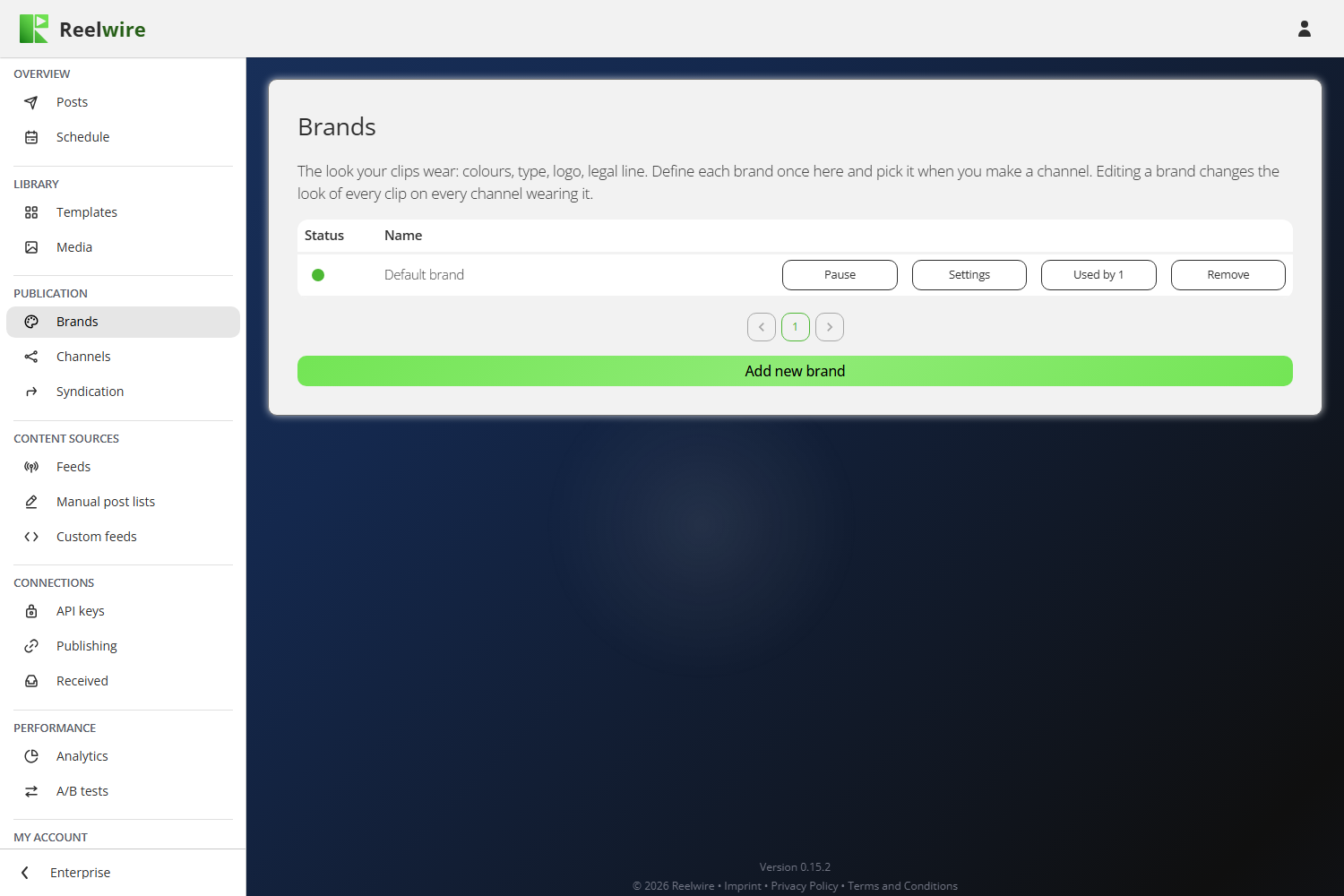
Each row carries Pause, Settings, Used by and Remove. The count on the Used by button is there because "nothing is wearing this" is the one fact about a brand you cannot see by looking at the brand. Pause stops every channel wearing the brand from making new clips until you press Resume.
Every new workspace starts with one, Default brand, already wearing the starter files from the media library: example-logo.png as its logo, example-badge.png as the presenter badge with John Doe and Presenter as its two lines, example-background-image.jpg as its background, example-outro-video.mp4 as its 9x16 outro, example-font.ttf as its headline font and example-sound.mp3 as its soundtrack, playing over the clip and the outro. Its name is drawn across the top and along the bottom of the clip. Under Post text it already has a description, the hashtag #mybrand and a link to https://www.example.com, so every post shows where the brand's words go. Each of these is a placeholder: replace it with your own in Settings.
The editor
Settings opens the brand, and Add new brand opens the same editor empty. On the right is a Review column that draws a mock clip in the nine colours and three fonts the form sets, with the post text under it, so you can see a change before you save it. Where the brand has more than one language, a picker above it chooses which one the Review shows.
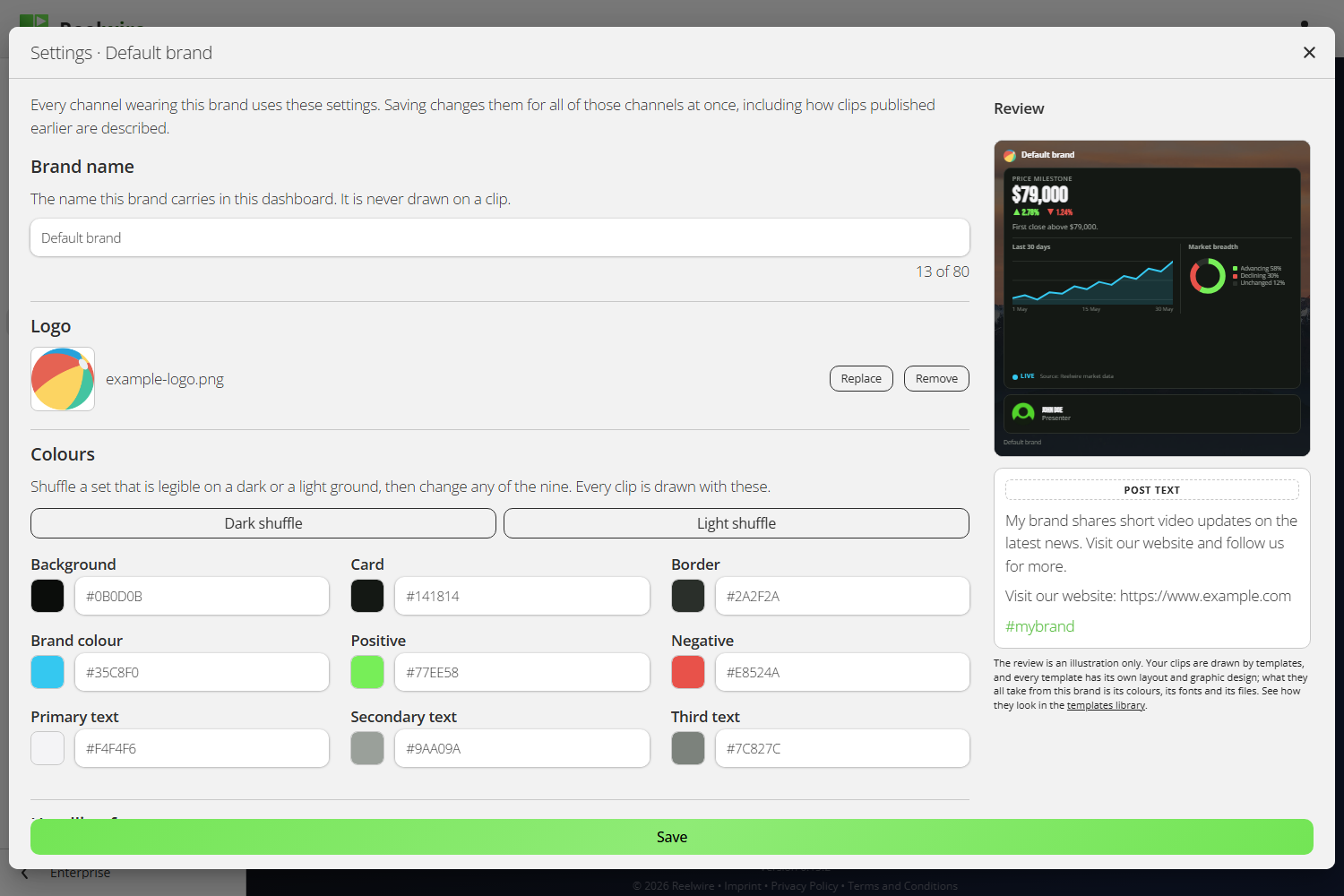
The review is an illustration, not a preview of your clips. Every template has its own layout and its own graphic design. What they all take from a brand is its colours, its fonts and its files. To see the real thing, use Preview on Templates.
The editor asks, from the top:
- Brand name, which is only ever shown in the dashboard, never drawn on a clip.
- Logo.
- Colours: nine of them. Dark shuffle and Light shuffle pick a set that is legible on a dark or a light ground, replacing every colour after asking once; then change any of the nine.
- Headline font, Body font and Frame font. The frame is the brand's own lines at the top and bottom of the clip, sized on their own so a large headline does not bring a large legal line with it.
- Sound: a soundtrack, and under Used for whether it plays over the clip only, or over the intro, the outro or both as well. It starts once and plays on across them, starts again from the beginning if it is shorter than what it covers, and fades out over its last second. An intro or outro with sound of its own keeps it unless you choose to play the soundtrack over it. A soundtrack can be composed with the AI assistant: the sparkle beside Add while there is none, or Create with AI behind Add or Replace. It is instrumental unless you switch singing on, and it needs a key under API keys for AI music generation.
- Then Localizable properties, below: see Languages.
Closing the editor with a change in it asks whether to save it, discard it or keep editing.
Making a brand's files and texts with AI
Every file slot can be filled by the AI assistant. The dialogue behind Add or Replace has Create with AI above Upload and Choose from library, and while a slot is empty a small sparkle button beside Add opens the assistant directly. It already knows what the slot needs: a square logo or badge with a clear background, a background in the shape your channels post in, an intro or outro in the shape of its row, or a new font drawn for the brand.
Write with AI on Texts on the clip and on Post text writes those fields for you, within their lengths, in the language of the section it was opened from. Ask for a change, such as "shorter", and it changes only that and keeps every other word as it was. Nothing changes until you choose Use this, and nothing is saved until you press Save.
The two things people get wrong
Pressing "Add new brand" creates nothing. The brand exists when you press Create. Opening the dialogue and closing it again leaves nothing behind. The one exception is deliberate: if you upload a file inside a new brand, the brand is created at that moment, because a file has to belong to something. After that the dialogue is editing a real brand and the button reads Save.
Saving changes every channel already wearing the brand. That is the point of a brand, and it is still the thing that surprises people. The editor says so at the top: "Every channel wearing this brand uses these settings. Saving changes them for all of those channels at once, including how clips published earlier are described." Clips already rendered keep the look they went out with, but the post text under them is read from the brand and changes with it. Press Used by first to see which channels you are about to affect.
Languages
Below the look sits Localizable properties: what a brand says rather than what it looks like. It holds Texts on the clip (two lines at the top and two along the bottom), Background, Badge, Intro video, Outro video and Post text. Fill in Default alone and every channel wears it whatever language it posts in. Add further language adds a section: tick only the fields that differ. Anything left unticked falls back to the default, and is shown greyed out so you can see what the default draws.
Colours, fonts, the logo and the sound are deliberately not among them. A German channel wearing a different palette from an English one would be two brands under one name.
Intros and outros
An intro or an outro is uploaded once per aspect ratio: 9x16, 4x5, 1x1, 16x9 and 2x3. A shape with no clip has no intro at all. A clip here is added to templates that have no opening or closing of their own, and replaces the one they have. The Default brand's starter outro is made in 9x16, the shape of the Default channel, so a channel you make in another shape plays no outro until you upload one for it. The editor turns red when a shape that one of your own channels actually posts in has nothing uploaded, because that is the case where clips go out without the opening you thought you had set.
The post text budget
Description, hashtags and link share 300 characters, and the editor counts them for you. That budget is not the platform's limit: it is the room the brand takes out of every post, and the post's own caption gives way to fit around it. Going over turns the count red, and the brand cannot be saved until you shorten the description, the link or the hashtags.
The link is a button under the post on Telegram, and a link in the text on YouTube, Facebook and LinkedIn. Instagram and TikTok do not make links in a post clickable, so it is left out there.
Removing a brand
Removal hides a brand rather than deleting it. Clips it already drew keep its look and their posts stay in Posts, marked as removed. The dialogue asks you to type the brand's name. If channels are wearing it you must choose another brand for them in the same dialogue, and if there is no other brand the removal is refused: "There is no other brand to move them to. Add one first, then remove this one."
On the free plan
Every clip carries a Reelwire bar under your own footer, on a band of its own so it is never taken for part of your brand. Nothing in the editor changes it. It comes off on any paid plan.