Custom feeds and API keys
Two screens for your own systems. Custom feeds, under Content sources, is where they put data into Reelwire. API keys, under Connections, holds the keys they sign in with, and an AI assistant connected over MCP uses the same keys. Both are on every tier, Free included: what a plan sells is render allowance, storage and seats, never whether the product can be driven from your own code. Reelwire's own feeds and post lists publish alongside them.
Streams
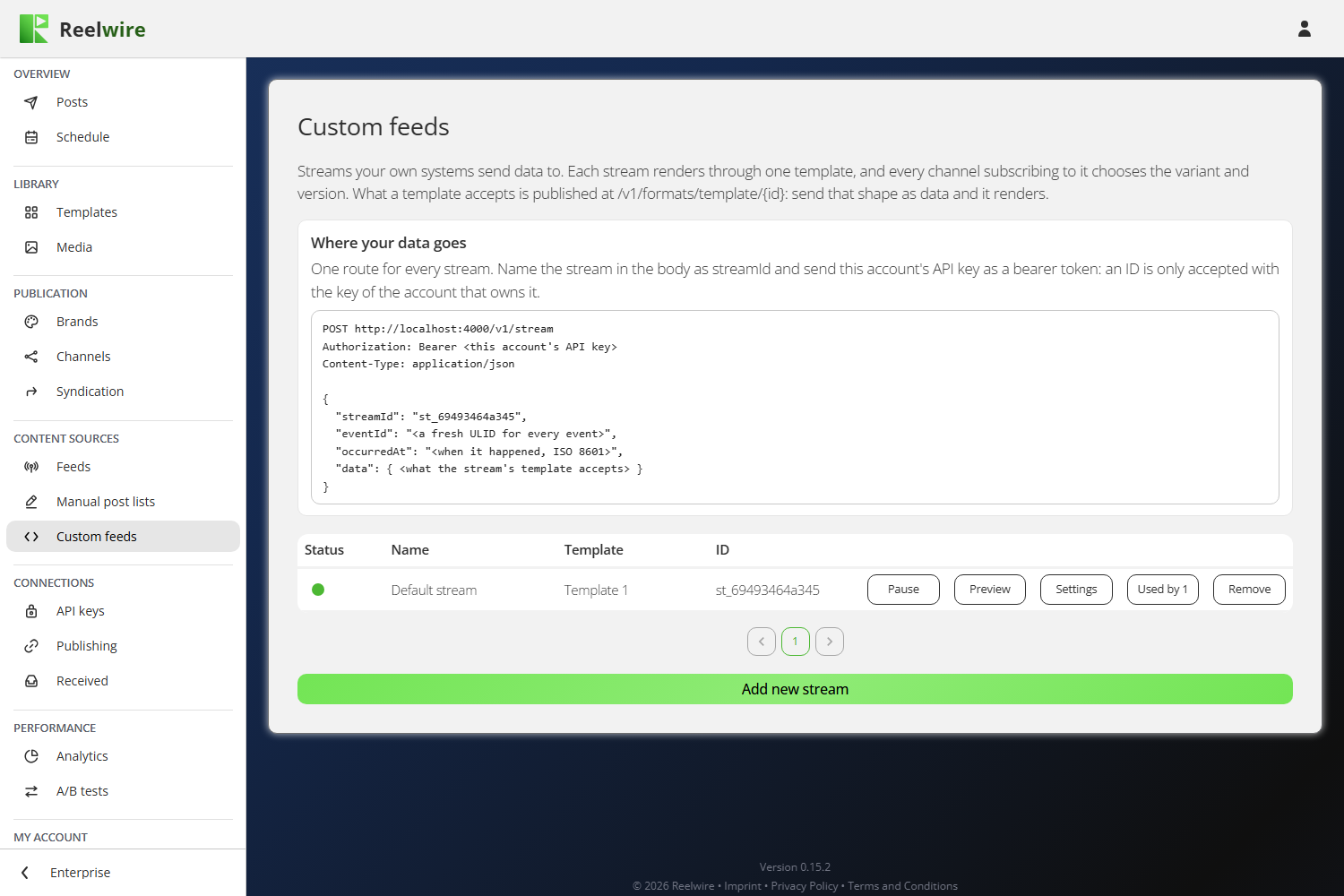
The Custom feeds screen lists your streams. A stream is a named place your data arrives. It
renders through one template, and every channel subscribing to it chooses the variant and the
version. One route serves every stream: you name the stream in the body as streamId and send an
API key as a bearer token. An ID is only accepted with a key belonging to the account that owns it.
Where your data goes, at the top of the screen, shows the request in full, ready to copy: the
route, the header that carries your key, and the body with streamId, a fresh eventId for every
event, occurredAt and the data itself.
Every new workspace starts with one, Default stream, drawn through the first template the workspace is offered, and Default channel already listens to it. To send to it, make a key under API keys with Custom feeds - Send raw data ticked, and post that template's published format with the stream's ID.
There is no field mapping. Every template publishes the keys it accepts at
/v1/formats/template/{id}, so a producer written against the published format sends the content
directly and there is nothing in between to configure. See Sending events
in the API reference for the request in full.
Add new stream asks for a name and the template, and shows the ID the stream will have. Nothing is rendered until a channel subscribes to it: open Channels, press Sources on the channel, and add the stream there.
Each row says whether the stream is Live or Paused, its name, its template and its ID, then:
- Pause stops the stream accepting data until you press Resume. Anything sent meanwhile is refused with a message saying the stream is paused.
- Preview plays the template's reference video, so you can see what the stream's clips look like before any of your data arrives.
- Settings changes the name or the template.
- Used by lists the channels listening to the stream.
- Remove asks you to type the stream's name first.
Two things to know:
The ID cannot change. Your system names it in every request, so changing it would break that silently. The ID is minted when you open the Add dialogue, before the stream exists, so what you copy out of the dialogue is what gets created.
Changing a stream's template resets the channels. A channel subscribing to a stream renders through the template set here, in the variant and version that channel chose. Change the template and every one of those channels goes back to the default variant and the latest version.
Removing a stream stops it accepting data. Anything still sending its ID gets a refusal saying the stream was removed, rather than silence. The channels listening to it stop listening. Data it already received still renders and posts, and its posts stay on Posts.
API keys
The keys are on a screen of their own, API keys under Connections, and it is an owner's or an admin's alone. Its first card, API keys for Reelwire, described here, holds the keys your own systems use to reach Reelwire. The four cards below it, API keys for AI image generation, API keys for AI video generation, API keys for AI music generation and API keys for AI text and font generation, hold the other direction: your keys for the AI services the AI assistant makes pictures, videos, music, fonts and texts with. They are described on that page.
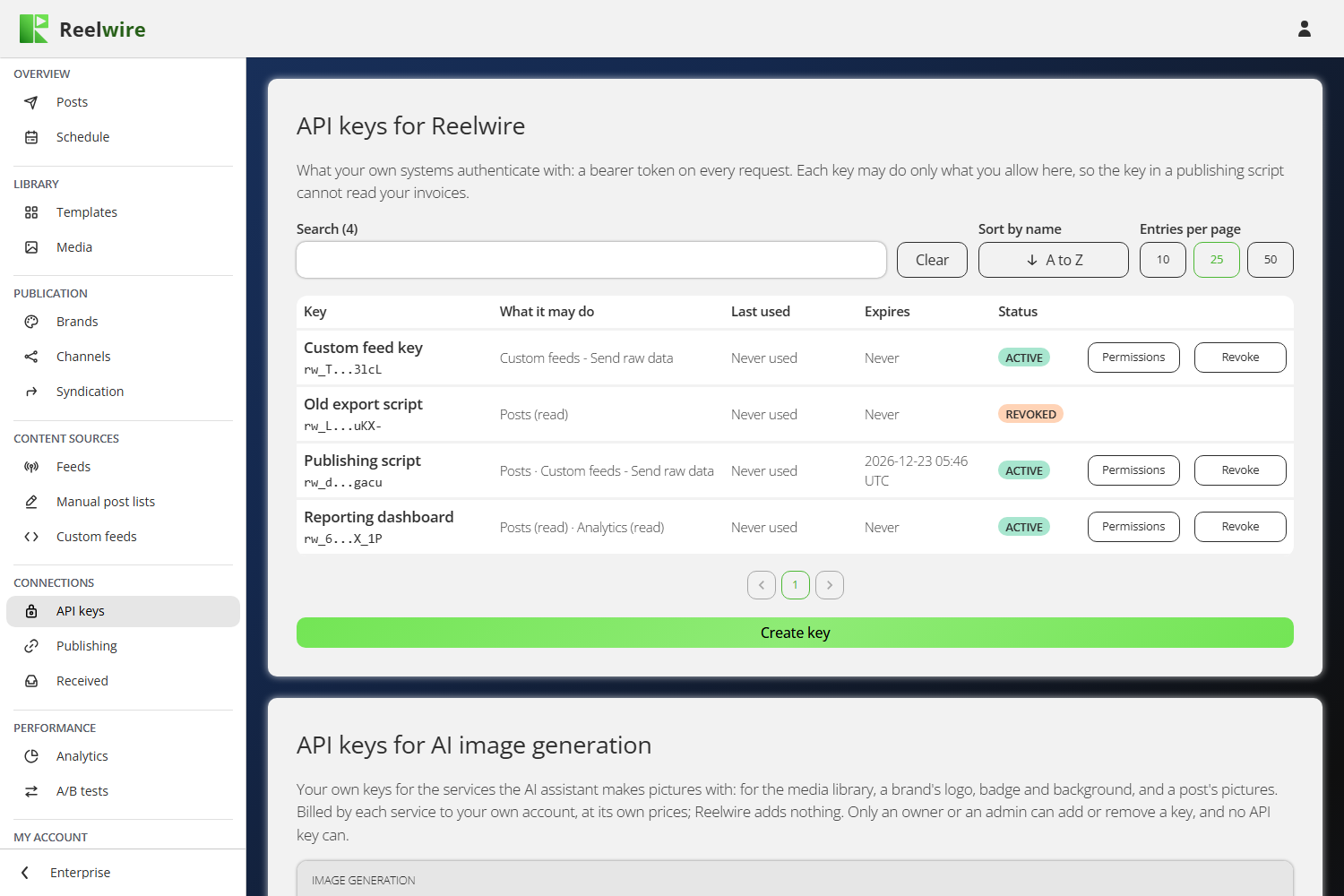
A key is a bearer token your own systems authenticate with. Each key may do only what you allow, so the key in a publishing script cannot read your invoices.
The list shows each key's name and the first and last four characters of its secret, what it may do, when it was last used, when it expires and its status: ACTIVE, REVOKED or EXPIRED. A key still working has two buttons, Permissions and Revoke.
Create key asks for a name, when the key expires, then what the key may do. The permissions are grouped under the same headings as the menu on the left, and every area has two boxes, Read and Write. Nothing ticked is no access, and a key with nothing ticked at all cannot be created.
Ticking Write ticks Read with it and locks it. That is not the screen being fussy: a key that may change a thing may already look at it, so leaving Read tickable underneath Write would let you untick a permission the key still holds.
Where an area has nothing to read, its Read box is greyed. Send raw data is the one: it is a push, and there is no route behind it to look at. Where an area has nothing a key may change, its Write box is greyed: a key may read your Allowance and your Plan, but buying, keeping or giving back anything moves money, so it needs a person signed in.
Whatever you choose, no key can create or revoke keys, sign anybody in, or reach another workspace.
The secret is shown once, in a dialogue that opens as soon as the key is made, with Copy beside it. Only a hash is stored, so there is no endpoint that could show it again and no support request that could recover it. Copy it before you press I have saved it.
Revoke asks once more, then the key stops working immediately and stays in the list with its last-used date, which is what tells you whether the key you just killed was still in use. A revoked or expired key then has Remove in its row: it asks once more and takes the line off the list for good. When it was last used stays in the workspace's audit trail.
A key can expire by itself. Choose Never, a period (1, 7, 30 or 90 days, or a year) or an exact date and time in UTC, the same picker a post's schedule uses. At that moment the key stops working exactly as if it had been revoked, and its row says EXPIRED instead of REVOKED, so you can tell a key that ran out from one somebody turned off. Permissions on a key still working changes its name, its expiry and what it may do. An expired key cannot be brought back; create a new one. A connection made by an AI assistant over MCP is a row of its own that renews itself: its expiry reads "Renewed by the assistant", and there is none to set.
Name a key after where it lives, not after what it does. When you need to revoke one in a hurry, the question you will be answering is "which machine is this on".
See Authentication in the API reference for how to send it.
If the subscription is cancelled
The gate is on creating things, not on running them. A cancelled workspace keeps the keys and the subscriptions it already has, so nothing stops a script that is already sending. What it stops is making new ones, and resubscribing on any tier, Free included, opens it again.