Feeds
A feed is content Reelwire produces and offers you. You do not build one and you do not supply the data: you switch it on for a channel and it posts without anybody opening the dashboard again. For most workspaces this is what the channels actually run on. You find it under Content sources, then Feeds.
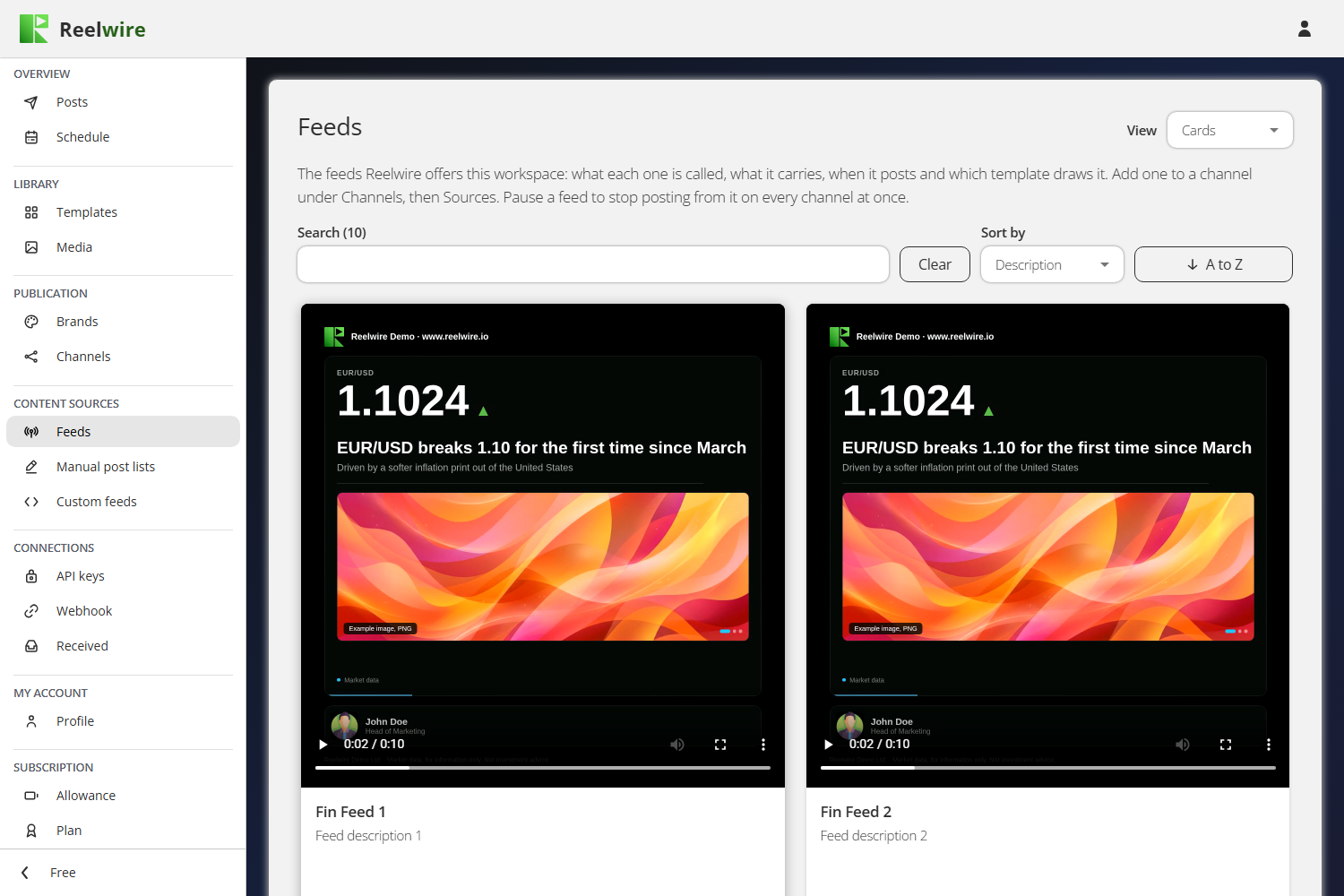
Each row says what the feed is called, what it carries, when it posts and which template draws it. The View picker switches between Cards, where each feed shows a reference clip, and List, and remembers your choice in that browser. Search by name, and sort by name, description, schedule or status.
Only feeds offered to this workspace are listed: the ones made for the industries your workspace chose, under Your industries on your profile. Which feeds suit which industry, and which template each one uses, are Reelwire's decisions and can change. The Catalogue in this documentation has a page for every feed Reelwire ships, with its schedule and an example video.
Adding one to a channel
Nothing on this screen subscribes anything. A feed reaches a channel from the other end: open Channels, press Sources on the channel, then Add new source. Press Used by here to see which channels already listen to a feed; the count is on the button.
Pause here stops it everywhere
The Pause button on this screen is the workspace-wide switch. Paused, nothing that feed sends is posted on any channel, however many listen to it. To stop a feed on one channel only, pause it in that channel's Sources list instead.
Pausing takes effect at once and asks no questions, because pressing Resume undoes it.
If you do not hold the Operations permission you see each feed's status and no button, because the API would refuse you the switch.
Preview
Preview plays the template this feed is drawn through, with example content and an example brand. A real clip carries the data the feed sends and the brand of the channel it was made for.