Media library
The images, videos, sound and fonts your clips use, kept exactly as you uploaded them. Nothing is resized or converted: the renderer scales what it draws, so a file is stored and counted at the size it arrived. You find it under Library, then Media.
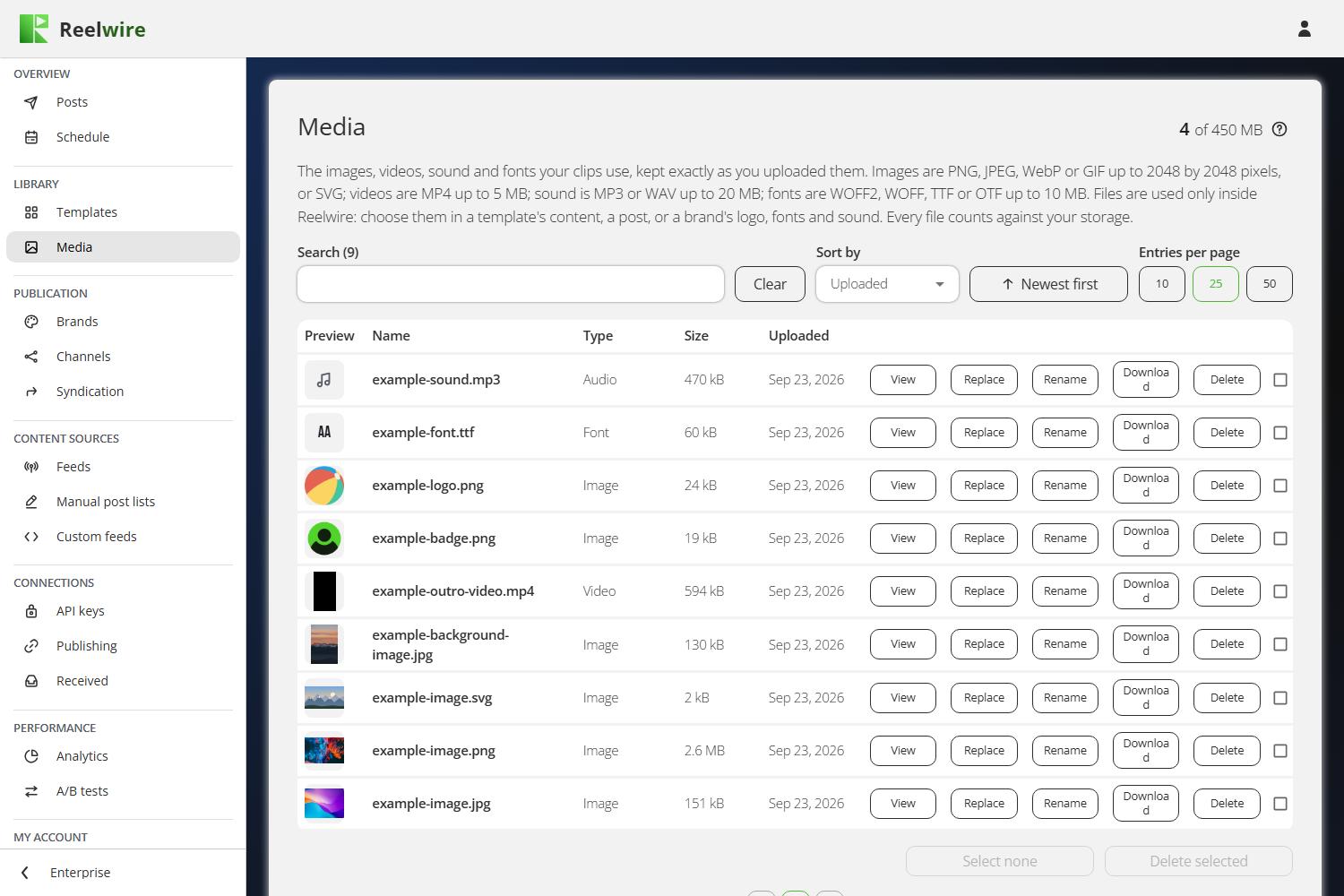
Files are used inside Reelwire only. There is no public address: you choose a file in a template's content, in a post, or in a brand's logo, fonts and sound. The storage is for clips, not for hosting pictures elsewhere. The figure at the top right is how much of the media share of your storage is used.
What you can upload
- Images: PNG, JPEG, WebP or GIF up to 2048 by 2048 pixels, or SVG.
- Videos: MP4 up to 5 MB.
- Sound: MP3 or WAV up to 20 MB.
- Fonts: WOFF2, WOFF, TTF or OTF up to 10 MB.
Upload new media takes several files at once. A file with the same name as one already in the library replaces it, and the dialogue asks first: the old file is deleted, and every brand and post that used it uses the new one from then on.
Each row carries View, Replace, Rename, Download and Delete. Replace swaps in a new file of the same kind under the same name. Rename changes only how the file is listed: the ending stays, and everything that uses the file keeps using it. Download saves a copy of the file as it is, under its name in the library. Search, sort by upload date, name, type or size, and tick files to delete several at once with Delete selected under the table. Filter by type, on the line under the search, shows only images, videos, fonts or sound; Clear shows every file again.
Making files with AI
Generate with AI, above Upload new media, opens the AI assistant: choose a picture, a video, music or a font, choose a model, and describe what you want. What you save from the chat lands in the library like an upload, by the same rules, and counts against your storage the same way. The assistant uses your own keys for the AI services, added on the API keys screen.
The same assistant is behind Create with AI wherever a file is chosen: a brand's file slots, its soundtrack included, and the pictures in a post's content.
What a new workspace starts with
Every new workspace starts with nine files already here, so its first clip shows pictures and a dressed brand rather than empty frames:
- example-image.jpg, example-image.png and example-image.svg, the pictures the templates' own examples ask for by name.
- example-logo.png, example-badge.png, example-background-image.jpg, example-outro-video.mp4, example-font.ttf and example-sound.mp3, which the Default brand wears as its logo, presenter badge, background, 9x16 outro, headline font and soundtrack (see Brands).
They are ordinary files. They count against your media storage, and you can rename, replace or delete them like anything you uploaded. Deleting one the Default brand wears takes it out of that brand, as it would for any brand.
Two things people get wrong
A refusal appears at the bottom of the card, beside the Upload button. Files are uploaded one at a time, so a file that does not fit stops only itself and everything before it is already in the library. The reason, most often a file larger than what is left of your media storage, is printed where you are standing when you press Upload rather than at the top of a long list.
Deleting a file does not just take it out of the list: it takes it out of everything using it. Before the Delete button turns on, the dialogue looks up where the file is used and lists it. A file in use is removed from each brand named, and posts that have not gone out yet are published without it.
Rendered clips are not media
The second card, Rendered clips, lists the clips Reelwire rendered for your channels, and the videos exported with Direct export, from Templates or by an AI assistant. They live in their own share of the storage and behave differently: when that share is full, the oldest clip is removed to make room for the newest, automatically, whichever kind it is.
Each row shows the clip, its template and channel, its shape, length, size and when it was rendered, with View, Reuse and Delete, and you can tick several to delete them together. Reuse opens Direct export filled with what the clip was made from, its template, variant, build, brand, shape, language and content, to make it again with a change; the new video joins this list, and the original stays. Deleting a clip that a post is still waiting on cancels that post and the rest of its posting job, and withdraws any approval request; the dialogue says so first, naming what the post is waiting for. Only a clip being published at that very moment cannot be deleted: its Delete is greyed, with the reason printed under it.
The storage split
The third card, Storage split, divides your storage between the two. The two sides behave differently, which is why they have separate shares: media is kept until you delete it and an upload that does not fit is refused, while rendered clips rotate oldest first.
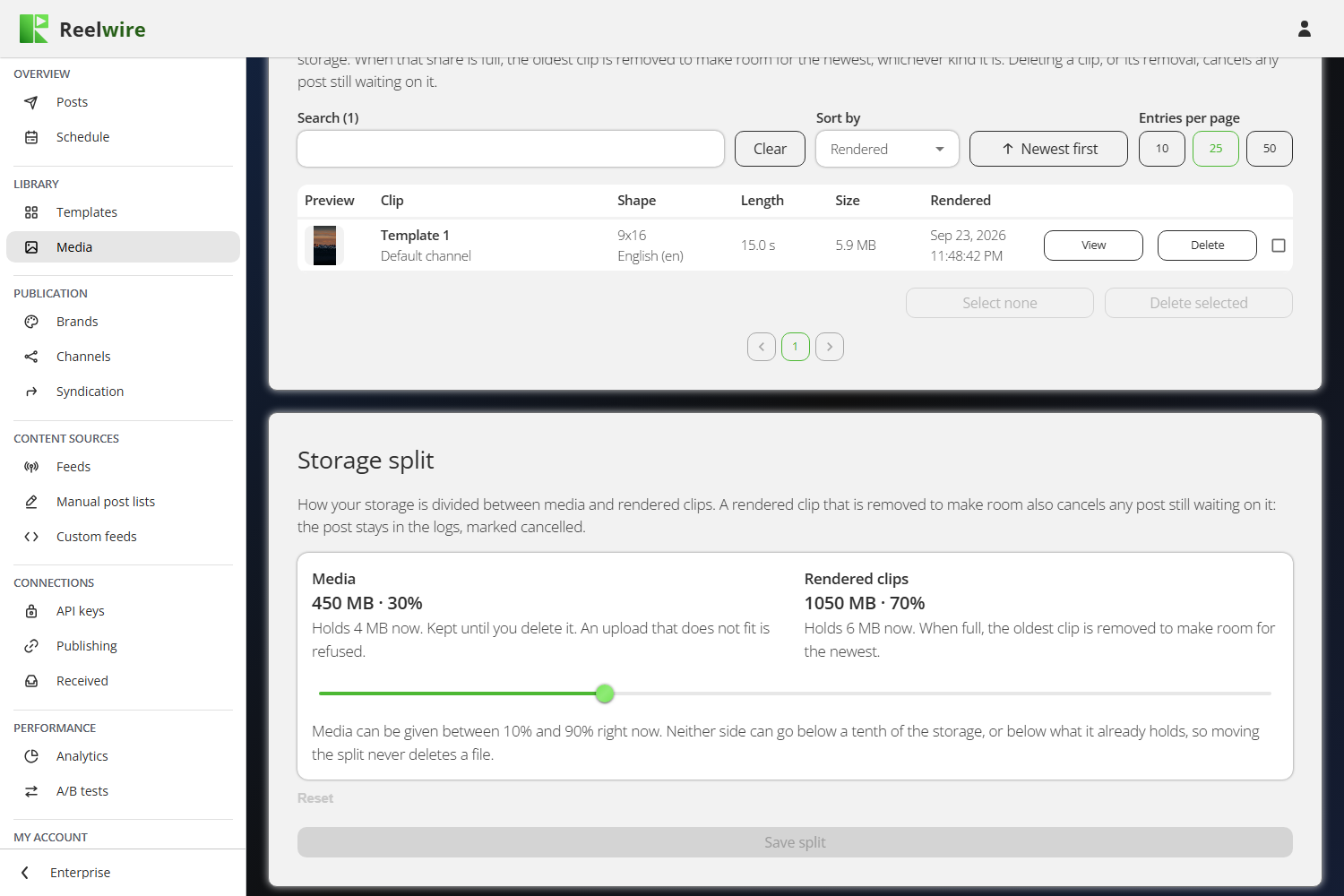
Moving the split never deletes anything. The slider cannot go below what either side already holds, or below a tenth of the storage for either side, and the line under it says what the range is. If both sides are already over what a smaller share would fit, the slider locks and says so: delete files, or add storage on the Plan screen. Save split keeps a new position, and Reset puts the slider back where it was saved.
Only the owner of the workspace can move it. Everybody else sees the figures.