Manual post lists
A post list holds posts you write by hand. It is the shortest route from an idea to a posted clip: no feed to wait for and no script to write. You find it under Content sources, then Manual post lists.
A list is a name and nothing else. You add its posts afterwards, each with its own template, its own content and its own time, and you subscribe channels to the list under Channels, then Sources.
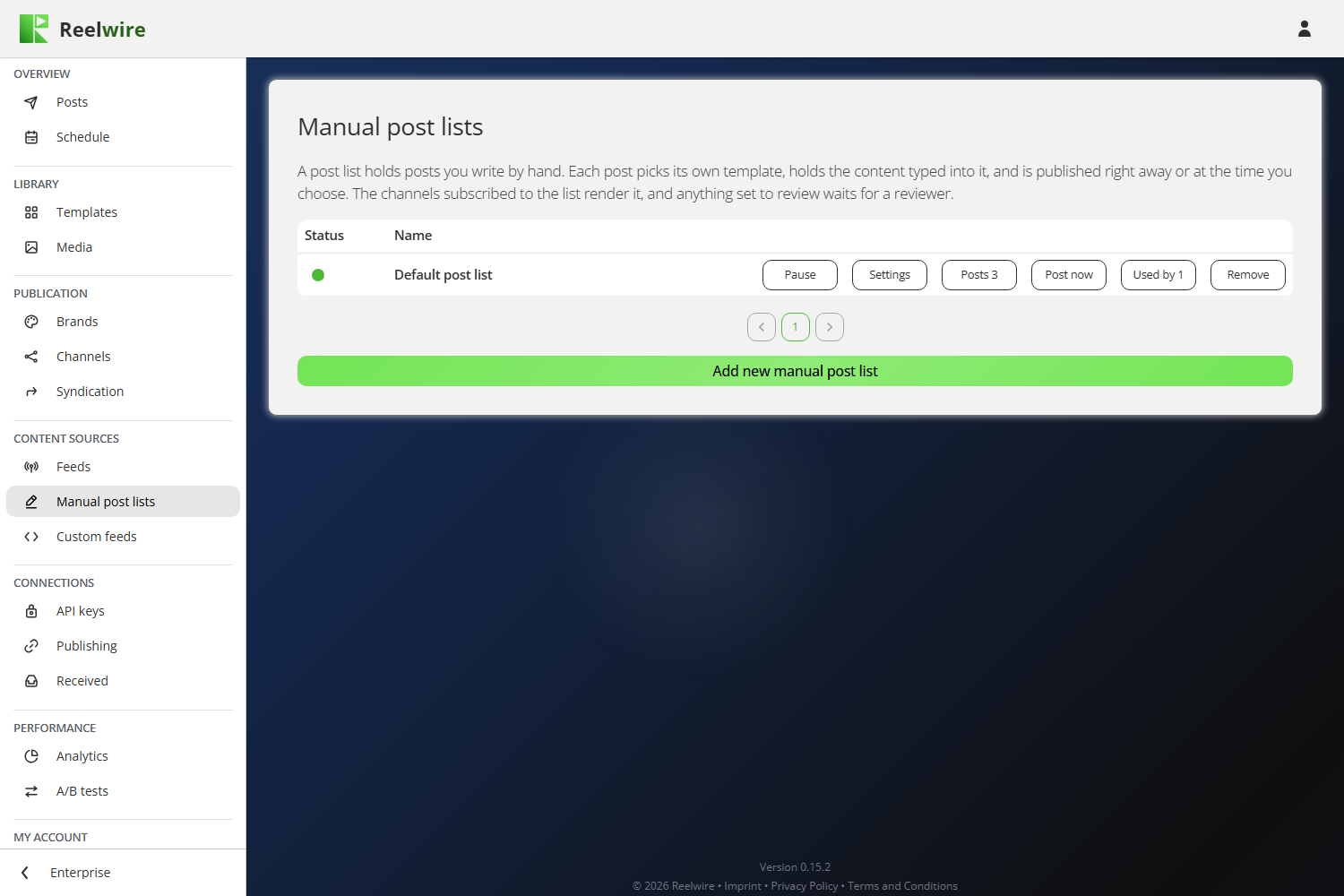
Every new workspace starts with one, Default post list, and Default channel already listens to it. So the first post you add there becomes a video without subscribing anything first.
Each post picks its own template, so a channel subscribed to a post list shows "Chosen per post" where other sources show a fixed template.
Each list's row carries Pause, Settings (its name), Posts with how many it holds, Post now, Used by with how many channels listen to it, and Remove.
The thing people get wrong: a list with no subscribers fires into nothing
A post can be written, scheduled and fired on a list that no channel listens to, and then reach nobody. The screen tries hard to stop that happening quietly: a warning sits above the posts when nothing subscribes, and the channel count under a scheduled post turns red when it is zero.
If a post has already gone out on such a list, its outcome line says so in red: "No channel was listening, so nothing was rendered or posted." Used by on the list's row names the channels that do listen.
Writing a post
Add new post, inside Posts, asks four things, in this order. Post now on the list's own row is the shortcut: it opens the list's posts with a new post already open over them, set to go out right away, and once the post is saved both close and you are back on the list of post lists. Closed without saving, you are left on the list's posts. Reuse on the Posts screen opens the same dialogue, filled with a finished post's template and content, every language included, and named "Copy of" the original.
- A name, for you. It is not drawn on the clip. New posts are pre-named "My post" plus six random characters, so two of them are never the same.
- The template, the variant and the version. Preview below them plays what you have chosen.
- When to publish: right away, in 15 minutes, in 1 hour, in 3 hours, tomorrow at the same time, or a date and time you pick. Every time on this screen is UTC, as it is on Schedule.
- The content, through a form generated from the template's own inputs, or as JSON.
The button at the foot says what will happen: Post now for right away, Schedule for a later time, and Save when you change a post that is waiting.
You are not asked when the thing happened. A post happens when it is published, so that is filled in for you.
Fill with the template's example puts a worked example in, which is the quickest way to see what a template expects. It asks first if it would overwrite something you wrote.
If the template has per-language copy, the form draws a Languages card with a Default section and one per language you add. A language overrides rather than repeats: only ticked fields go into that language, and anything left unticked falls back to the default.
Pictures come from your media library. A picture in the content is chosen the way a brand's logo is: Add (or Replace) opens a dialogue to create one with AI, upload a file or choose one from the library, the sparkle beside Add goes straight to the AI assistant while there is no picture, and Remove clears it. Under it, Alt text says what the picture shows, for anyone who cannot see it. A web address is never accepted as a picture.
A picture your library does not have is marked in red. Content written as JSON, or a template's example, can name a file that is not in your media library. Its preview then has a red frame, and a bold red line under the name says so: the clip would be drawn without it. Replace it, or upload a file with that name.
Writing the content with AI
Write with AI, the blue button above Form and JSON, opens the AI assistant for the whole content. Tell it what the post is about ("Bitcoin crossed 100,000 dollars today"); it writes every text within its field's limit, and the numbers the template asks for, keeping them plausible and never inventing a fact you did not give. It writes further languages too: ask for "a German version", or for a change "in every language". Ask again as often as you like: a change such as "a shorter headline" touches only what you asked about and keeps every other word, including one you corrected by hand. Nothing changes until Use this, which fills the form and leaves every picture where it was. Check the figures before you post: they are facts, and the assistant only knows the ones you told it.
What the states mean
A post reads Scheduled, then In progress while its channels are rendering or posting, then Sent. In progress exists because a post that has fired is not yet out: "Sent" over "5 channels, 5 rendering" would be the row contradicting itself. Under a sent post, the outcome line counts what happened on each channel: rendering, rendered, posted, awaiting approval, failed, and, on channels with Email switched on, emailed. A post can also read Failed or Cancelled.
Settings is available only while a post is still Scheduled. One that went out is a record.
Pausing
Pause stops the whole list. While it is paused, a post that comes due is not published on any channel that listens to it, and it is not published later either. Pausing asks first; Resume on the same row starts it posting again.
Removing
Removing one post asks once, without typing anything: a post still waiting will not go out at all, and one that has already gone stays on the channels it reached, with only the record of it removed from the list. To remove several, tick them and press Remove selected under the table.
Removing a whole list asks you to type its name, because the list, every post in it, and its place as a source on every channel listening go together. The dialogue names those channels first.