Team
Everybody who can sign in to this workspace, and what each of them may do. Team is under My account in the menu. It needs the Administration permission, and it comes with Small business and above: on Free and Individual a workspace is one person.
Roles and permissions are different things
There are two roles, and neither is set on this screen. The owner is whoever holds the subscription. The owner can do everything, cannot be changed or removed from this screen, and is the only person who can reach Plan and Billing. Everybody else is a member.
What a member may do is three independent permissions, granted in any combination:
| Permission | What it adds |
|---|---|
| Operations | Channels, brands, content sources and the pipeline. The day to day. |
| Approvals | The Posts screen with Approve and Reject on every post awaiting approval. It grants no editing, which is what a compliance reviewer needs. |
| Administration | Team, and API keys and Webhook under Connections: the people here, and the credentials that reach the outside. |
At least one is required. Somebody with none would sign in to an empty dashboard.
A role covers this workspace only. Nothing here reaches another customer, and Reelwire's own staff are not in this list.
Who gets which email
Each email goes to the people whose permissions let them act on it, and to nobody else. Plans, invoices and offers go to the owner alone: a colleague is never sent anything about what the workspace pays.
| Owner | Operations | Approvals | Administration | |
|---|---|---|---|---|
| A post handed over to you by email, with its post kit, the reminder a day later, and its update and take-down emails | Yes | Yes | ||
| Posts waiting for approval | Yes | Yes | ||
| Most of this month's videos used, and all of them used | Yes | Yes | ||
| Plan, subscription and billing emails | Yes | |||
| A new API key, or an AI assistant connected | Yes | |||
| Tips, the monthly summary, offers and notes from Reelwire (optional) | Yes | |||
| The workspace's first video is live (optional) | Yes | Yes | ||
| A colleague you added has not joined yet (optional) | Yes | Yes |
Somebody with two permissions gets both columns' emails, and one email where both would send the same one. Receipts and failed payments come from Stripe, to the owner or to the billing email set in the billing portal. Whoever creates an API key or connects an AI assistant is told as well as the owner. Everybody gets the emails about their own account: confirming the address, a setup or password link, a changed password, being removed from the team.
The optional ones stop for whoever switches them off on their own profile; the rest cannot be switched off.
The team name
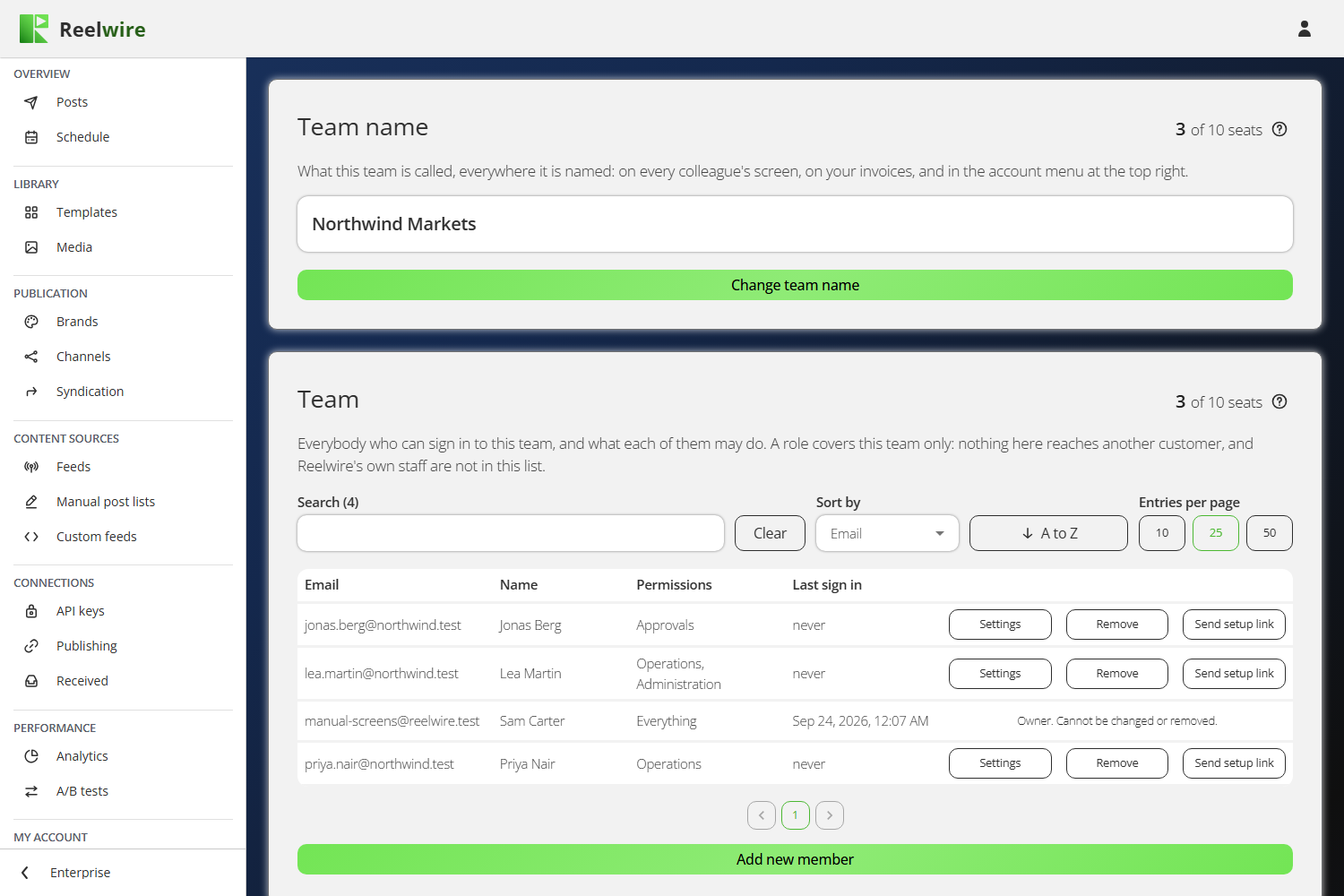
The Team name card above the list is what this workspace is called, everywhere it is named: on every colleague's screen, on your invoices, and in the account menu at the top right. Only the owner can change it, with Change team name. The indicator at its top right says how many seats are taken.
The list
Each row shows a colleague's email address, their name, their permissions and when they last signed in, and the list can be searched and sorted by any of those. The owner's row has no buttons. Every other row has three:
- Settings changes the name and the permissions.
- Remove takes them off the team (see below).
- Send setup link emails them a fresh link to set their password.
Adding somebody
Add new member takes an address, an optional name and the permissions. There is no password field: they are sent a link to set their own, so the account is theirs from the start. The name is theirs to change once they are in, on their own profile.
The dialogue that follows shows a one-time password as well, in case the message does not reach them. It is shown once and cannot be read again. If it is lost, use Send setup link on their row rather than going looking for it.
A setup link does not expire, so it still works whenever they get to it. Sending a new one stops every earlier link working, so only the newest is ever live.
Seats
The owner is not a seat. Seats count the colleagues besides them, and the count is on the plan. When they are all taken, Add new member is disabled and says why: remove somebody, or get more seats through Allowance.
Giving a seat back does not sign anybody out. What comes down is the room to add the next person.
Removing somebody
Removing signs them out everywhere and their account is gone. What they did is not: the audit trail records the address behind every action, and those entries outlive the person, which is what makes this safe to do. There is no undo, and adding the same address again makes a new account rather than restoring the old one. The dialogue asks you to type the address first.
This is also the only way a member's account ends: a member cannot delete their own profile, because it belongs to the workspace that added them.