Templates
A template is what a clip looks like before your own colours and type are put on it. Reelwire writes and maintains them; you choose which one a source is drawn through, and your brand supplies the rest. A feed arrives with its own template; a custom feed's stream or a post in a post list picks one of these.
The screen lists only the templates offered to this workspace: the ones made for the industries your workspace chose, under Your industries on your profile. A template you are not offered is neither shown nor mentioned, and it is not available to a stream or a post list either. The Catalogue in this documentation has a page for every template, its variants and versions, with an example video each.
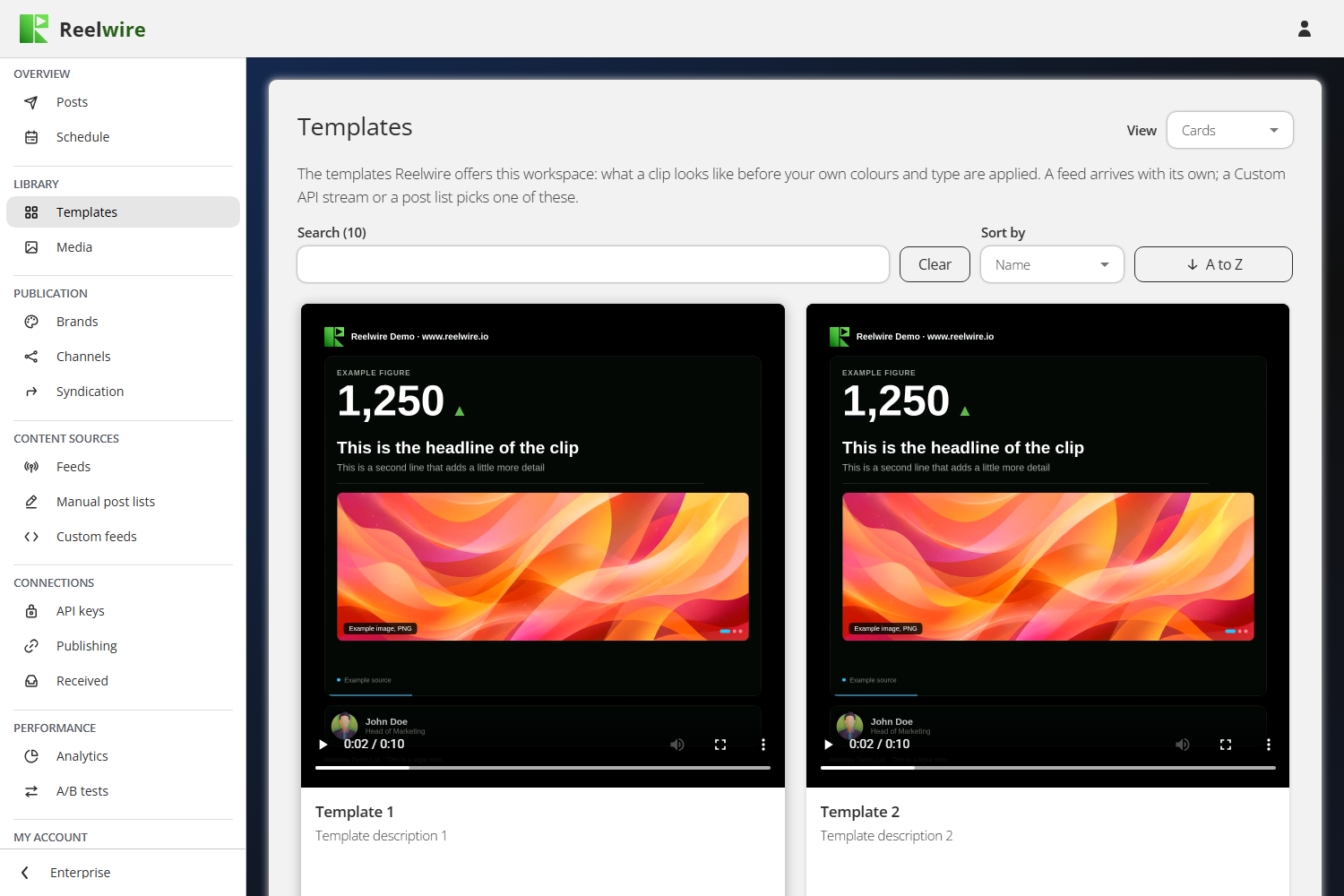
The View picker in the top right switches between Cards, where each template plays a short example, and List, and remembers your choice in that browser. Each template shows its name, what it draws and how many variants it has, with Preview and Direct export beside it.
Preview shows the template, not your clip
Preview plays a reference video for a chosen variant, version and aspect ratio. It is an example: example content, example brand. A real clip is drawn with the data that arrives and with the brand of the channel it is made for. If you want to judge your own brand against a template, the brand editor's Review column is the other half of the picture.
A variant is a cut of the template. A version is a build of it. Which variant and which version a channel wears is decided where the channel subscribes to the source, under Channels, or, for a post list, on each post. Not here.
Direct export
Direct export fills a template in once and hands you the result, without a channel, a source or a post. It is for the clip you need for something else: a one-off, a mock-up, a still for a deck.
It also opens from Reuse, on a post on the Posts screen and on a clip under Rendered clips on the Media page: already filled with that post's or clip's template, variant, build, brand, shape, language and content, so a small mistake is one change and a new render. Anything no longer offered, such as a build or a brand removed since, falls back to the first there is.
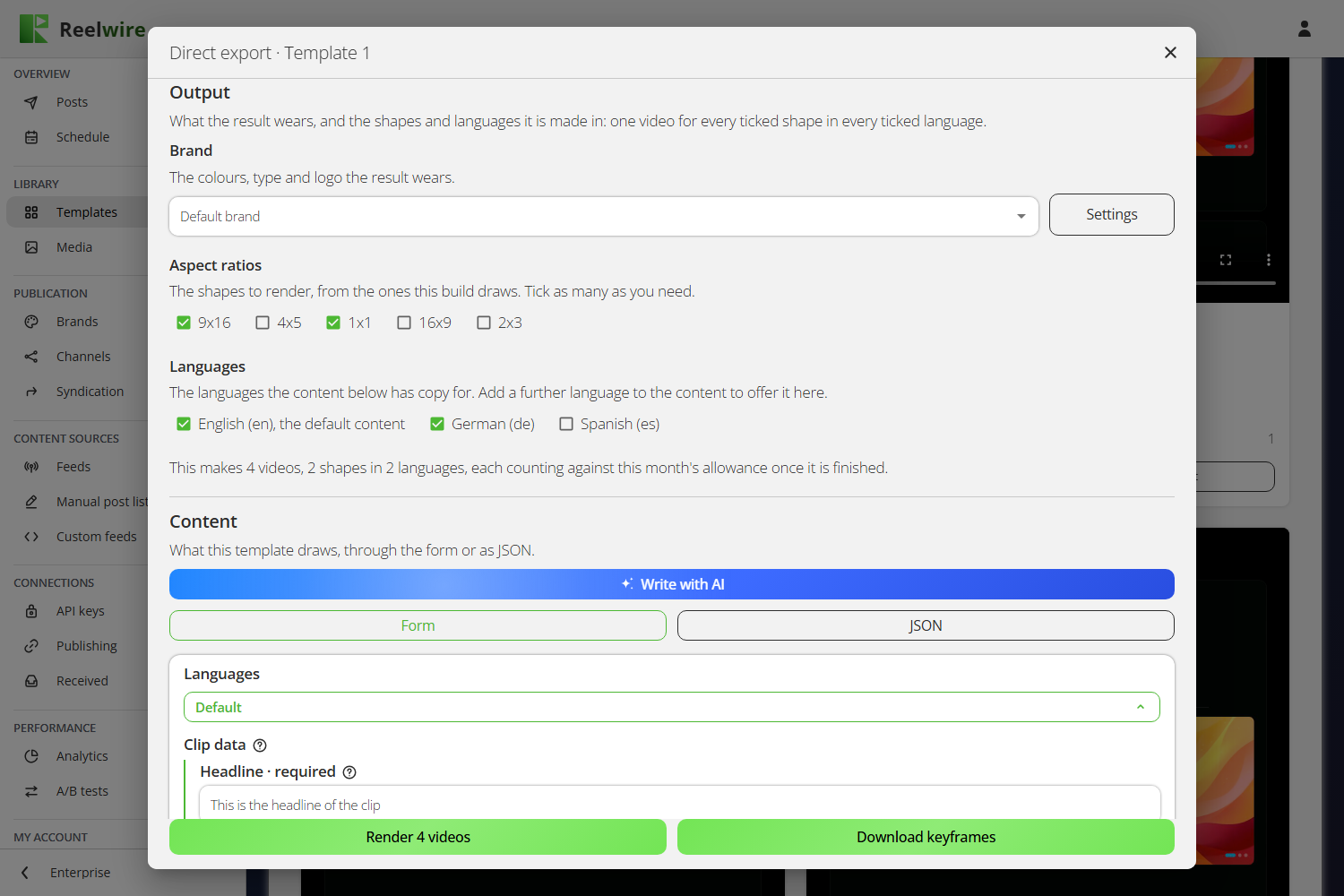
You pick the variant and the version (the newest build is picked for you), then answer the three questions a channel would otherwise have answered: which brand, which shapes and which languages. A Settings button beside the brand opens that brand's editor over the dialogue, to check or change it there.
Aspect ratios and Languages are ticks, as many of each as you need, and every ticked shape in every ticked language is a video of its own: two shapes in three languages are six videos, and one render makes at most 24. The line under the ticks says how many that is before you start. Only the languages the content has copy for are offered: English, the default content, and each further language you add to the content below. Content with no further language offers English alone. Then you fill in the content either through the generated form or as JSON. Fill with the template's example loads a worked example you can edit, which is the fastest way to see what a template expects.
The content of a Direct export can be written by the AI assistant too: Write with AI above the content writes all of it, every language included, and pictures are chosen from the media library, exactly as in a post list.
At the foot, Render video (or Render 6 videos, with that many ticked) and Download keyframes are the two ways to take the result away.
Two things are worth knowing before you use it.
A finished video is kept. It goes into Rendered clips on the Media page, beside the clips Reelwire makes for your channels, and it is kept the same way: in their share of your storage, where the oldest clip makes room for the newest once that share is full. You can download it again from Media or from Exported videos at any time, or delete it on either.
Closing never stops a render. A video carries on after you close its dialogue, and after you close Direct export altogether, and waits under Exported videos, below the Templates card. Closing while something still renders says so first. If the render finished but the video did not arrive in the dialogue, the button reads Try again rather than Download video.
Every finished video counts against your monthly allowance. Keyframes do not. So a still you need at exact frame 90 is free, and a video is not. Several videos are checked against what is left before any starts, counting the ones still rendering, so a batch is started whole or refused whole.
While a video is rendering, the dialogue distinguishes waiting from drawing: "Waiting for a free renderer, with 3 clips in front of it" is a normal queue, not a stall. A renderer draws one clip at a time and takes your channels' posts as well as this one. The clock counts from the moment you pressed the button, because the wait is part of what you sat through. Once the video is there it plays in the dialogue, and Download video saves it.
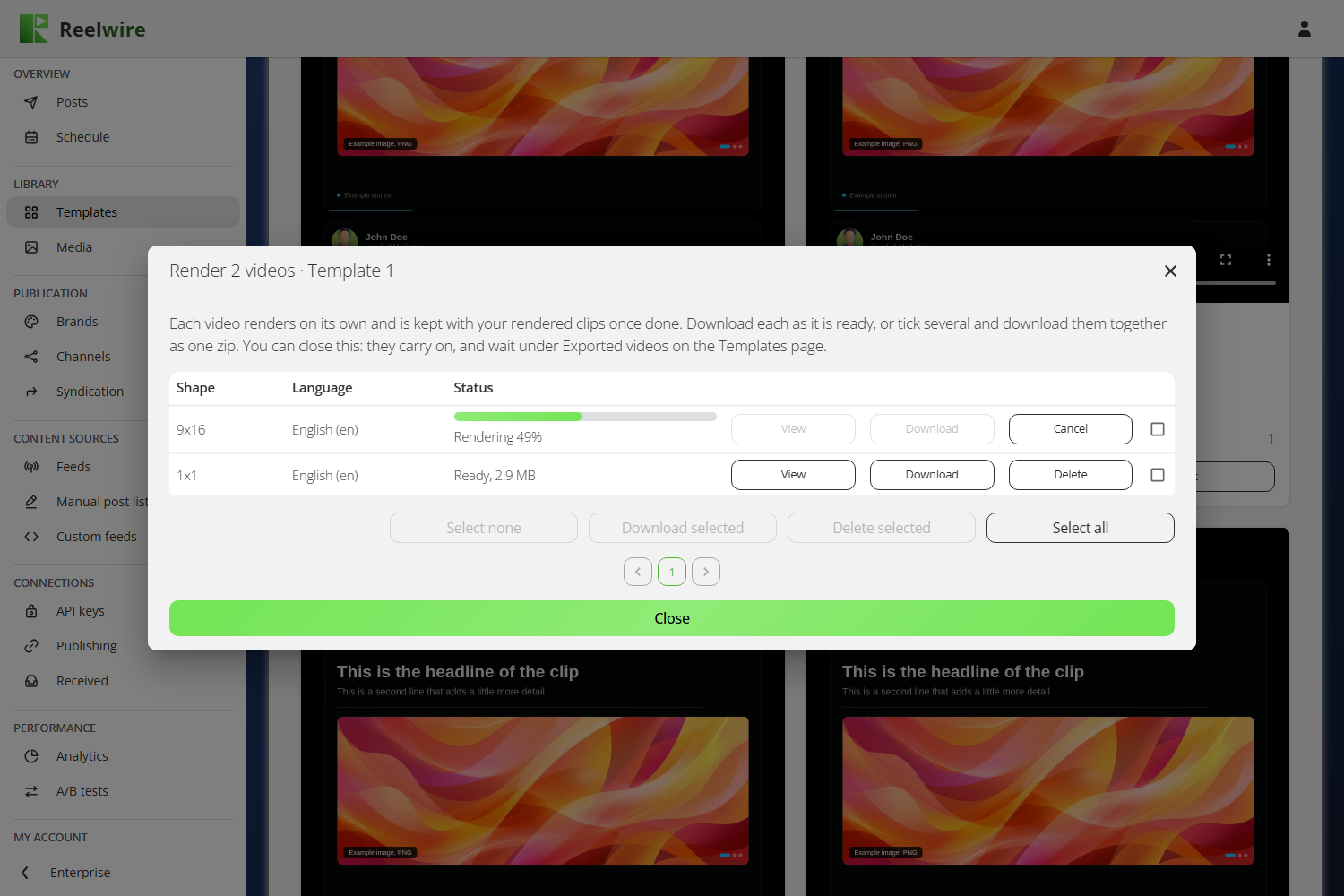
Several videos show as a list instead, one row each with its shape, its language and how far it has got. Each row has its own View and Download once it is ready, and Cancel while it still renders. View plays the video in the same viewer the Media page uses, over the list, so you can look at one while the others carry on rendering and come straight back. Tick several, or Select all, which here ticks every video of the batch on every page, and Download selected saves them together as one zip. Closing the list returns to the form with everything still filled in.
Keyframes
Download keyframes saves one PNG per frame you name, together in one zip. The dialogue works out how long the clip runs first, because for some templates that depends on the content, and then tells you the facts you need: how many frames, at what rate, and that frames count from 0, so the last one is one less than the total. Add keyframe adds a row; each row takes a name and a frame number, and the Time column converts the frame to seconds so you are choosing an instant rather than an integer. One export holds at most 60 keyframes. Keyframes are not kept in Reelwire. They are cut from the first ticked shape and language.
Both exports are named after what made them: the template, the variant, the version, the brand, the shape and the language. Two exports of one template in two languages do not land in your downloads folder as the same name, and neither do the videos inside one zip.
Exported videos
Exported videos, the card under Templates, lists every video made with Direct export, newest first: waiting, rendering, failed (with the reason, for two hours), and finished ones for as long as they are kept with the rendered clips on the Media page. It is where a render you closed is waited for and fetched, and it keeps itself up to date while anything renders.
Above the list, as on every list, are Search (the template, its variant, build and brand, the shape, the language, the status and the date, as the rows show them), Sort by (started, template, shape, language or status, either way round) and how many rows a page holds. The line under them filters by status (waiting or rendering, ready, failed or cancelled), template, shape and language, with Clear to show everything again. The ticks and the buttons under the table act only on what the search and the filters leave showing.
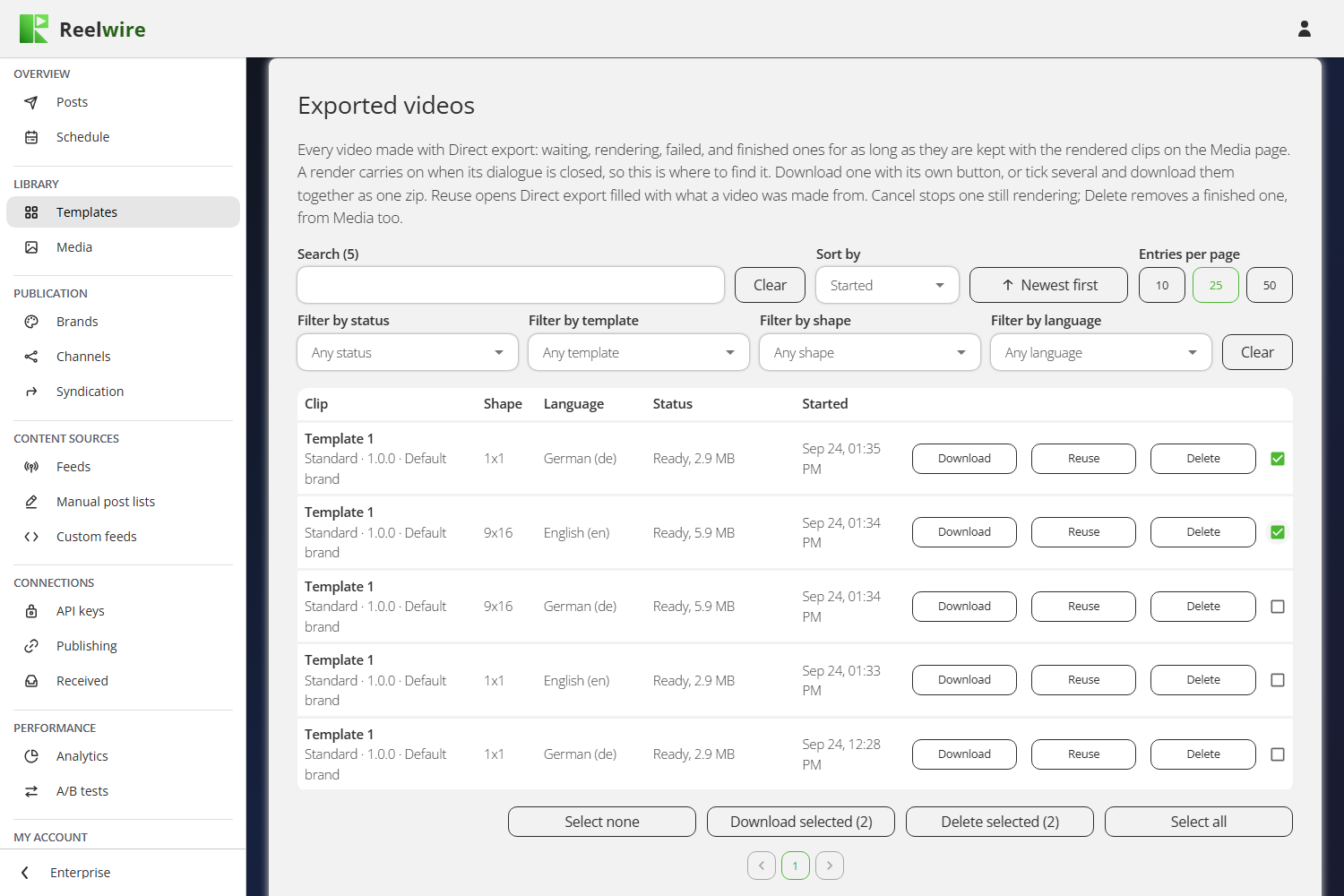
Each row names the template, its variant, version and brand, the shape and language, how far it has
got (with its size once it is ready) and when it started. Every finished row has its own
Download, which saves the .mp4, and its own Delete. A row still rendering has Cancel
instead, which stops it; a cancelled video is not counted against your allowance.
Reuse, on every row, opens Direct export already filled with what that video was made from: the template, variant, build, brand, shape, language and content, every language included. A small mistake is then one change and a new render, and it works as well for a video still rendering or one that failed as for a finished one.
Under the table, above the pages, are the buttons for the ticked rows. Select all ticks every row on the page and Select none clears the ticks. Download selected saves the finished ones among them, together as one zip when there are several, at most 24 videos and 400 MB at a time. Delete selected removes every ticked row: what still renders is cancelled, and what is finished is deleted.
Cancel, Delete and Delete selected each ask once more before anything goes, and say what will happen. A finished video you delete here is gone from Rendered clips on the Media page too, and the space comes back to your storage.