AI assistant
The AI assistant makes pictures, videos, music and fonts for your media library, and writes the texts on your clips and posts, with the AI services you connect: OpenAI, Google, Black Forest Labs, BytePlus (Seedance), ElevenLabs, Stability AI and Anthropic (Claude). You describe what you want in a chat, see what comes back, ask for changes, and keep only what you like.
You bring your own keys. Reelwire does not sell AI. Every picture, video, piece of music or text is made with your own account at the service you choose, and that service bills your account directly, at its own prices. Reelwire adds nothing on top.
Setting it up
The keys live on the API keys screen (under Connections), in four cards, one for each kind of thing the assistant makes:
| Card | Services |
|---|---|
| API keys for AI image generation | OpenAI, Google, Black Forest Labs |
| API keys for AI video generation | Google, Black Forest Labs, BytePlus (Seedance) |
| API keys for AI music generation | ElevenLabs, Stability AI |
| API keys for AI text and font generation | OpenAI, Anthropic (Claude) |
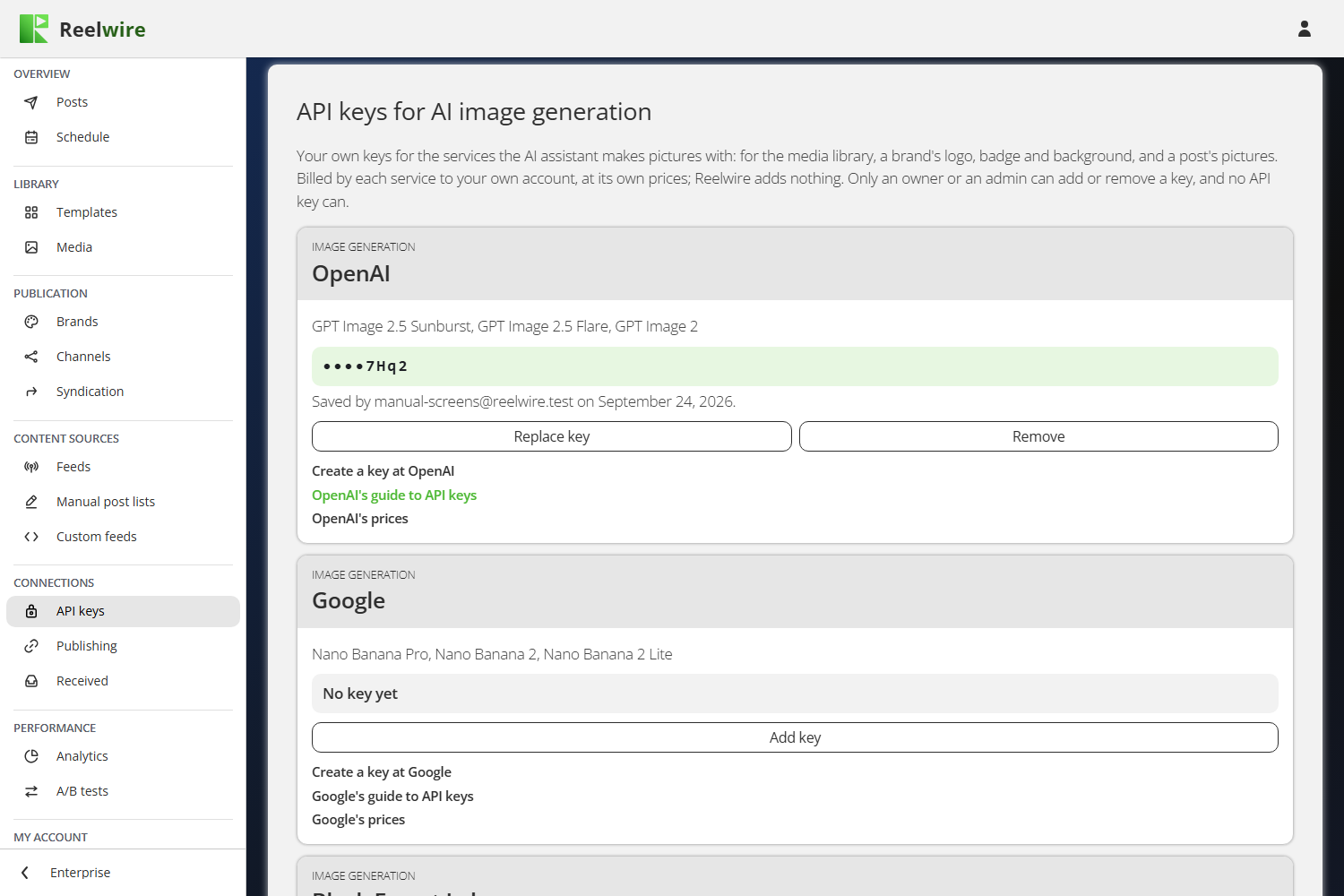
Each card has its own keys. A key switches on its service's models in the card you add it to, and nowhere else. A Google key under image generation lets the assistant make pictures with Google, not videos; to use Veo as well, add a key under video generation too. It can be the same key. That way making videos, which costs the most, is always something somebody switched on.
Inside each card, every service has a panel of its own, one under the other: a grey band naming the section and the service, the models the key switches on, and the key itself. A saved key shows its last four characters on green, with who saved it and when; a service without one says No key yet. Under it are the buttons and three links: where to create a key at that service, the service's own guide to its keys, and its prices.
Add key asks for the key, and Save key stores it encrypted. It is never shown again: the screen keeps only its last four characters, so you can tell which key you pasted. Where the service offers a quick way to check a key, Reelwire asks it straight away and tells you whether the key was accepted; otherwise the service is asked the first time the assistant uses it. Replace key puts a new key in its place.
Remove takes the key out of that card only: a key in another card stays, and so does everything already made with it. The key itself still works at the service, so delete it there too if nobody should use it any more. A key that was saved but can no longer be read says so, in orange, and has to be pasted again.
Only an owner or an admin can add or remove a key, and no Reelwire API key can. The first card on the same screen, API keys for Reelwire, is the other direction: the keys your own systems use to reach Reelwire (see Custom feeds and API keys).
Where to get each key
| Service | Create a key | What the account needs |
|---|---|---|
| OpenAI | platform.openai.com/api-keys (guide) | Credit on the account. OpenAI asks some organisations to verify themselves before its picture models work. |
| aistudio.google.com/apikey (guide) | A Gemini API key on a Google Cloud project with billing switched on. | |
| Black Forest Labs | dashboard.bfl.ai, then API, Keys, Add Key (guide) | Credits on the account. The key is shown only once there. |
| BytePlus (Seedance) | ModelArk console, API keys (guide) | The Seedance models activated in the ModelArk console, and a balance or a Seedance resource pack. |
| ElevenLabs | elevenlabs.io/app/settings/api-keys (guide) | A paid plan: music is not on the free one. Check ElevenLabs' own terms for who may use which plan and where the music may be published. |
| Stability AI | platform.stability.ai/account/keys (guide) | Credits on the account. |
| Anthropic (Claude) | platform.claude.com/settings/keys (guide) | Credit on the account. |
The models
For each service, the assistant offers several models for each kind of thing it makes: the most capable first, then lighter, quicker or older ones, each with a line on what it is good at. Every model is always listed. One whose service has no key in that model's card yet is greyed out and says which card its key belongs in. The dialogue starts on the first model you have a key for.
| Makes | Service | Models |
|---|---|---|
| Pictures | OpenAI | GPT Image 2.5 Sunburst, GPT Image 2.5 Flare, GPT Image 2 |
| Pictures | Nano Banana Pro, Nano Banana 2, Nano Banana 2 Lite | |
| Pictures | Black Forest Labs | FLUX.2 [max], FLUX.2 [pro], FLUX.2 [flex], FLUX.2 [klein] 9B |
| Video | Veo 3.1, Veo 3.1 Fast, Veo 3.1 Lite (always with sound) | |
| Video | Black Forest Labs | FLUX 3, FLUX 3 draft |
| Video | BytePlus | Seedance 2.5, Seedance 2.0, Seedance 2.0 Fast, Seedance 2.0 Mini |
| Music | ElevenLabs | Eleven Music v2.5, Eleven Music v2 |
| Music | Stability AI | Stable Audio 2.5, Stable Audio 2 |
| Texts and fonts | Anthropic | Claude Fable 5.1, Claude Opus 5.5, Claude Sonnet 5, Claude Haiku 4.5 |
| Texts and fonts | OpenAI | GPT-6 Astra, GPT-6 Sol, GPT-6 Luna, GPT-5.5 |
Settings per model
The settings sit right under the model, above the chat, and change with it: the dialogue shows only what the chosen model can do, with the choices it actually makes.
| Setting | What it does |
|---|---|
| Shape | The aspect ratio of the result. |
| How many | How many pictures one message makes, 1 to 4. Each one is billed. Hidden when the model makes one at a time. |
| Background | Normal background, or Clear, for a logo or a badge, which makes a transparent background. Hidden when the model cannot. |
| Refine this one | The button under a picture. Your next message changes that picture instead of starting a new one, and the button then reads Selected for refining. |
| Choose a picture | Above the message box, before the first message or at any time: a PNG, JPEG or WebP from your media library, or one you upload, for your next message to change. |
| Length | How long a video or a piece of music is, in seconds. |
| Sound | Without sound or With sound. A model that always makes sound says Always with sound, and it cannot be changed. |
| First frame and Last frame | The video starts on one picture and ends on another. A last frame needs a first frame. |
| Vocals | For music: Instrumental, or With singing where the model can sing. A model that cannot says Instrumental only. |
Pictures
| Models | Shapes | How many | Clear background | Refine this one, or a library picture |
|---|---|---|---|---|
| OpenAI: GPT Image 2.5 Sunburst, GPT Image 2.5 Flare, GPT Image 2 | 1:1, 9:16, 16:9, 4:5, 3:4, 4:3, 2:3, 3:2 | up to 4 | yes (in preview on GPT Image 2) | yes |
| Google: Nano Banana Pro, Nano Banana 2, Nano Banana 2 Lite | the same eight, plus 5:4 and 21:9 | up to 4 | no | yes |
| Black Forest Labs: FLUX.2 [max], [pro], [flex], [klein] 9B | 1:1, 9:16, 16:9, 4:5, 3:4, 4:3, 2:3, 3:2 | 1 | no | yes |
Videos
| Models | Shapes | Length | Sound | First and last frame |
|---|---|---|---|---|
| Google: Veo 3.1, Veo 3.1 Fast, Veo 3.1 Lite | 9:16, 16:9 | 4, 6 or 8 seconds | always on, cannot be switched off | yes |
| Black Forest Labs: FLUX 3, FLUX 3 draft | 9:16, 16:9, 1:1, 3:4, 4:3, 21:9 | 5, 8 or 10 seconds | with or without | yes |
| BytePlus: Seedance 2.5, Seedance 2.0, Seedance 2.0 Fast, Seedance 2.0 Mini | 9:16, 16:9, 1:1, 3:4, 4:3, 21:9 | 5, 8 or 10 seconds | with or without | yes |
Music
| Models | Length | Vocals |
|---|---|---|
| ElevenLabs: Eleven Music v2.5, Eleven Music v2 | 10, 15, 20, 30, 45, 60, 90 or 120 seconds | instrumental or with singing |
| Stability AI: Stable Audio 2.5, Stable Audio 2 | the same | instrumental only |
- Where a place asks for a shape, such as a brand's vertical outro, the dialogue starts on it, and where the model does not make that shape exactly, the nearest one it makes is used.
- Seedance 2.5 with frames keeps the first frame's shape rather than the one chosen; the dialogue says so under the frames.
- FLUX 3 draft is the same model in a quicker, cheaper mode, for trying an idea before the full render.
- Videos come out at 720p on Veo and Seedance, and in HD on FLUX 3. There is no resolution setting.
- Music comes as an MP3, ready for a brand's soundtrack. It is instrumental unless you choose singing, since a soundtrack plays under a clip's own words. Describe it for Stability AI in English; it refuses other languages. Neither service makes music that names or imitates an artist, and a description that does is refused in the service's own words.
Prices
Each service sets its own prices and changes them often, so Reelwire does not print them. See the service's own price list: OpenAI, Google, Black Forest Labs, BytePlus, ElevenLabs, Stability AI and Anthropic. The same links are on the API keys screen, under each service's key, and in the line under the message box, which names the service that bills what you send. As a rule of thumb, a text is the smallest request, a drawn font a larger one and a video the largest, so start with a short video or a lighter model while you find the right description.
Where you find it
The assistant always opens from a blue button with a sparkle.
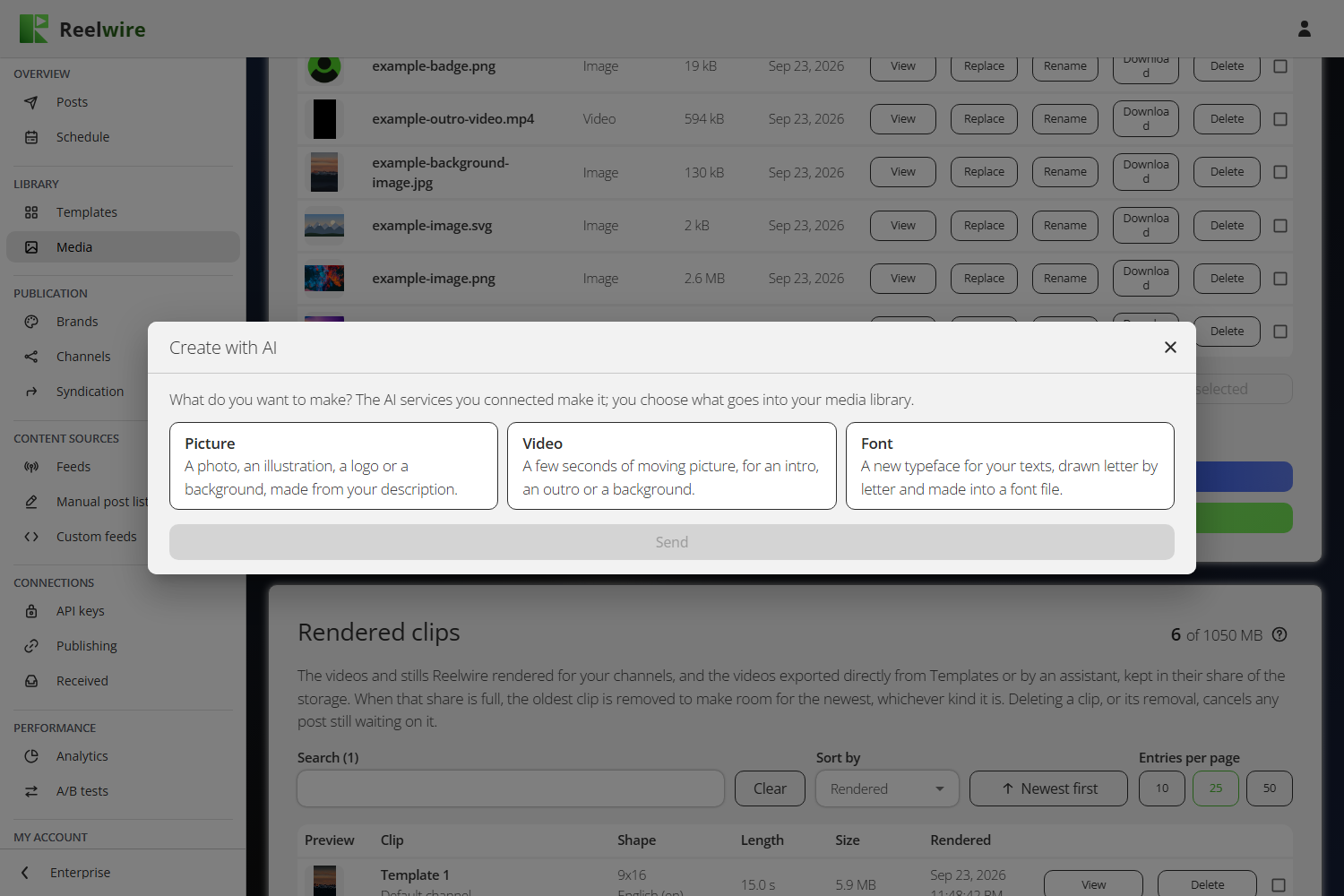
- Media library. Generate with AI, above Upload new media, asks what you want to make, on four cards side by side: Picture, Video, Music or Font. Whatever you save lands in the library like an upload.
- Wherever a file is chosen. The dialogue behind Add or Replace on a brand's logo, badge, background, fonts, intro, outro and soundtrack, and a post's pictures, has Create with AI above Upload and Choose from library. It already knows what the place needs: a square logo with a clear background, an outro in the shape of its row, or music to play under the clips.
- The shortcut beside Add. While one of a brand's file slots, or one of a post's pictures, has no file, a small sparkle button beside Add opens the assistant directly, without the Add dialogue in between. A picture your library does not have counts as no file, so it has the sparkle too. Once a file is there, Replace offers Create with AI in its dialogue.
- Texts. Write with AI sits on a brand's Texts on the clip and Post text, and above a post's Content (in a post list, and in Direct export on the Templates screen). There it writes the whole content in one go: every text and number, and every further language. Ask for anything from "a post about gold reaching a record" to "shorter" or "add a German version"; Use this fills the form, and the pictures stay exactly as they were. It starts from what is already written: a change such as "shorter" or "another headline" touches only what you asked about and leaves every other word as it was, including the ones you fixed by hand.
How a chat works
Where the place leaves it open, first choose what to make: Picture, Video, Music or Font. The heading then says what you are making, such as "Create a picture with AI", and Make something else instead, across the top, takes you back to that choice. It asks first when leaving would lose a chat.
Under Model sit the model and its settings, then the chat. An empty chat opens with the Reelwire logo, a greeting for the time of day and a line on what to do. Describe what you want in the box under it, up to 4,000 characters, and press the green Send (or Ctrl and Enter). Your message appears as a green speech bubble, and the answer in a light blue one pointing at the assistant's blue sparkle. While the service works, the sparkle pulses beside what it is doing and a clock counting the time. Nothing reaches your media library or your form until you choose it.
A picture or a video comes back in a frame of the same size whatever its shape, drawn whole inside it. Press it to see it at full size in the same viewer the Media page opens its files in; a video shows its first frame with a play mark in the chat and plays there, in the viewer.
- Ask for changes as often as you like. Each message builds on the ones before: "make the background blue", "shorter", "more playful". On a picture, Refine this one makes your next message change that picture rather than start a new one, and then reads Selected for refining. The picture then sits small above the message box, with Start a new one to let it go.
- Start from a picture you already have. On a model that can change a picture, the line above the message box offers Choose a picture: a PNG, JPEG or WebP from your media library, or one you upload; there is no Create with AI in it, since you are already in the assistant. Your first message then says what to change in it ("warmer light", "remove the text"), exactly as Refine this one does for a picture made in the chat. Replace swaps it for another and Start a new one lets it go. The picture in your library is not changed; what the model makes is a new picture you choose to keep or not.
- A video chat makes a new video with every message. Your earlier requests go along as words, but the service never sees the video it made before, so it cannot edit it. To go on from where a video ended, press Continue from this video: its last frame becomes the next video's first frame, and you say what happens next. The frame is saved to your media library as a picture, like an upload, so it counts against your storage.
- First and last frame. Every video model can start on a picture you choose, and end on another: pick them under First frame and Last frame (upload one, choose one from the library, or create one with AI). A last frame needs a first frame. They stay set for the next message until you remove them. With frames, Seedance 2.5 keeps the first frame's shape.
- Stop. While something is being made, the green Send at the foot of the chat becomes a red Stop. It drops the request at once and keeps nothing from it, and the chat says so. Where the service lets a running request be cancelled, Reelwire cancels it there too: a Seedance video still waiting in BytePlus's queue is cancelled before it is made. The other services have no way to cancel a request once it has started, so they may still finish, and bill, what they had begun.
- Changing the model starts a new chat, as the dialogue says under the model. One model cannot carry on another's conversation, so the dialogue asks first when there is something to lose.
- Shape, number and length. Pictures and videos ask for a shape (square, vertical, wide...), and the nearest one the model makes is used. Pictures can come several at once, each billed. Videos have a length in seconds. Clear background is offered where the model can make one. What each model offers is under Settings per model.
- Keeping a result. Save to media library (in the library) or Use this (everywhere else) keeps a file by the library's own rules: pictures up to 2048 by 2048 pixels, videos up to 5 MB, and your storage. A video too large to keep says so; ask for a shorter one. In the library the button then reads Saved, and the note saying which file it became goes away by itself after a few seconds or at your next click.
- Names. Pictures, videos and music get a short random name of one length, "ai-" and ten letters and digits, such as ai-v488zswytr.png. A drawn font is named after the font it is, ending in -Regular.otf. Where the name is already taken in your library, -2 is added. You can rename a file in the media library afterwards.
- A chat is kept for a day after you last used it. Anything you did not keep is deleted then, and never counts against your storage.
Fonts are drawn for you. A text model designs a new typeface from what you describe and draws every capital, lowercase letter, digit and common sign; Reelwire makes the drawing into a font file (.otf) and shows it in the chat, as two sample lines with the font's name and a sentence on how it looks. It takes a few minutes, one font per message, and asking for a change draws the whole font again. A drawn font is simple and clean rather than refined: good for short headlines, less so for long text. A character the drawing missed falls back to another font, and the chat says which. The assistant no longer picks fonts from Google Fonts.
Texts come back as the exact fields the place has, within their lengths, and appear in the chat first. Use this fills those fields and nothing else; your pictures and your other languages are left as they are. In a language section, of a brand or of a post's content, the assistant writes in that language.
Good to know
- The assistant is on every plan. Anybody with the Operations permission can use it; only adding the keys is for an owner or an admin.
- What you type is sent to the service you chose, with your key, and that service's own terms apply to it. Reelwire keeps the chat for a day and nothing longer.
- If a model refuses a request (most services check prompts for safety) or your account runs out of credit, the chat says so in the service's own words.
- Videos take one to four minutes. Keep the window open while one is being made.
The assistant can also be used through the API and by an AI assistant over MCP: see AI assistant in the API reference. Setting the keys is the one part that only works in the dashboard, on the API keys screen.